> ## Documentation Index
> Fetch the complete documentation index at: https://braintrust.dev/docs/llms.txt
> Use this file to discover all available pages before exploring further.
# How to configure OpenAI for EU organizations
## Summary
For EU organizations, standard OpenAI setup in Braintrust can fail during API key validation because validation currently targets the global OpenAI endpoint instead of the EU base URL.
The workaround is to configure OpenAI as a custom provider with the EU OpenAI API key and explicitly set the EU API base URL. You will see a validation error when saving the key. This is expected and can be ignored, since it reflects the global-endpoint validation path rather than the actual EU endpoint configuration. Once configured, use the custom provider for requests.
## Applicable To
**Plans:** Any
**Deployments:** Any
## Configuration Steps
### Step 1: Configure custom provider
Go to ** Settings** > [** AI providers**](https://www.braintrust.dev/app/~/configuration/org/secrets) > **Custom provider** > **Create**.
### Step 2: Enter credentials
Set the provider name (for example, OpenAI EU).
In API key, enter your EU OpenAI API Key.
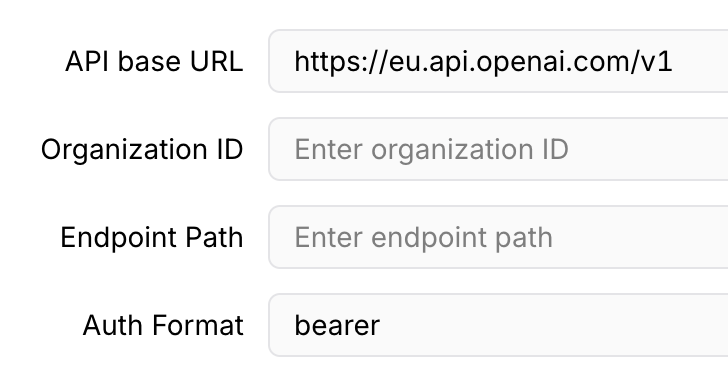
Enter `https://eu.api.openai.com/v1` as API base URL.
In Auth Format, enter bearer.
 ### Step 2: Save and test
Save the provider.
If API key validation shows an error, ignore it (that check is currently hitting the global OpenAI endpoint).
Run Test connection for the custom provider and confirm it succeeds against the EU endpoint.
In your playground/prompt/gateway usage, select or route to this custom OpenAI EU provider (not the default OpenAI provider).
### Step 2: Save and test
Save the provider.
If API key validation shows an error, ignore it (that check is currently hitting the global OpenAI endpoint).
Run Test connection for the custom provider and confirm it succeeds against the EU endpoint.
In your playground/prompt/gateway usage, select or route to this custom OpenAI EU provider (not the default OpenAI provider).