When production sends the PDF directly to the model, testing a prompt change against extracted text, OCR output, or a different copy of the document does not reproduce the task that originally failed. A reliable regression case keeps the exact source PDF, the user’s request, and the reviewed expected behavior together so every comparison runs against the same input.
With Braintrust, the PDF can stay attached to the production trace, move with the relevant request into a dataset, and be supplied again through a supported model’s file input in a playground. Teams can then compare the original and revised prompts against the same PDF, score the revised answer against the reviewed expectation, and save the successful run as an experiment for future regression testing.
Start free with Braintrust and turn production PDF failures into reusable test cases →
Components of a reusable PDF test case
Source PDF: Keep the exact file the user uploaded. Extracted text, OCR output, and model-generated summaries may omit tables, scanned pages, headers, page order, or other document structure that influenced the original response. A revised prompt that succeeds on a text representation has not shown that it succeeds on the PDF that produced the failure.
User request and prompt context: Store the user’s question alongside the PDF, plus the prompt version and model associated with the failed response. The same document paired with a different question becomes a different test case since the model may need to inspect different parts of the file to answer it.
Source trace and span: Preserve the connection to the production evidence that produced the failure. Dataset rows inserted with an origin field show a Log link in Braintrust’s Origin column, giving reviewers direct access to the source span, original response, and associated metadata when a later test result needs investigation.
Reviewed expected behavior: Replace the failed output with the answer or requirement confirmed during review. A span promoted from Logs typically carries its output into the dataset’s expected field, so leaving the original bad answer there would make it the target for later evaluation. The corrected value might be a complete answer or a specific requirement, such as the revenue figure the response should have cited from page 3.
Document tasks without one canonical answer can leave the expected field empty and rely on a scorer to check whether the response meets the requirement.
Also read: How to turn LLM production failures into regression tests
PDF storage options for LLM test data
For a reusable PDF test, storage determines whether the original document remains available after production logs expire and how the playground supplies the file to the model. Braintrust supports uploaded attachments and public file URLs, with an additional external-file option for self-hosted deployments.
Uploaded attachments
Braintrust attachments store PDFs and other binary files with traces, datasets, and experiment data. PDFs sent through supported provider request formats as inline base64 are automatically extracted into attachments at ingest. Python and JavaScript auto-instrumentation also performs the conversion client-side for supported providers, keeping large base64 payloads out of the span body.
Attached PDFs remain available from the trace for viewing or download, and the TypeScript and Python SDKs expose stored files as ReadonlyAttachment objects when reading dataset or experiment records. Uploaded attachments suit private user documents because the file never needs a public address.
Public file URLs
Documents with a stable public address can stay on their existing host. A playground File input can reference the URL from dataset metadata through mustache syntax, allowing each row to supply its own PDF to the same prompt. Braintrust’s PDF playground recipe demonstrates the pattern with publicly hosted earnings-call transcripts.
The test case remains dependent on the external host. Moving, deleting, or restricting access to the document breaks the file input for later runs.
Self-hosted Braintrust deployments also support ExternalAttachment for files stored in S3 without uploading the binary file to Braintrust. ExternalAttachment is unavailable on Braintrust-hosted deployments.
PDF availability after log retention
A PDF test case should not depend indefinitely on the production trace that originally captured the file. Production logs are subject to the workspace’s retention settings, so a dataset row that only references the full trace can lose access to its source once that trace is deleted or expires. In Braintrust, Add full trace to dataset keeps that dependency because the dataset row points back to the original trace.
Add this span to dataset copies the selected span's data, including its attachment reference, into the row. The row keeps the copied input even if the source trace expires; verify that its attachment still opens before relying on it for a later regression run. Dataset rows remain separate from log retention and are removed through dataset deletion or an applicable retention automation.
For regression cases that need to survive across multiple prompt releases, the most self-contained option is to store the PDF directly in the dataset record as an attachment. Keep the dataset record and its attachment available for as long as the regression case is needed.
Common reproduction gaps in PDF regression tests
A dataset row can preserve the original production case and still send the wrong inputs during evaluation. Check these failure modes before treating a prompt comparison as a valid reproduction of the PDF failure.
PDF stored without a File message part: Keeping the attachment in the dataset does not automatically place the document in the model’s context. The playground prompt still needs a File message part connected to the PDF. Without that connection, the model receives the question but not the document it is supposed to inspect.
Extracted text used in place of the original PDF: Pipelines that parse or chunk the upload before the model call often log the parsed text as the span input, so a promoted row can hold text with no attachment behind it. Confirm the row carries the original file before treating a passing comparison as a fix for the PDF task. If production uses parsed text as the model input, preserve and test that representation as well.
Wrong span promoted: Add this span to dataset copies only the selected span. If the PDF attachment sits on a child LLM span and the root span is promoted, the resulting dataset row may contain the user request without the file. Selecting the span that contains both the request and attachment keeps the inputs required for reproduction together.
Failed output left as the expected value: Check the expected field on every promoted row before the first scored run. A reference-based scorer compares each response against that field, so a row still holding the production answer can reward the revised prompt for reproducing the failure.
Model without file-input support: Confirm that each selected model accepts PDF inputs. The File control supports multiple media types, so its presence alone does not establish PDF support. A model that cannot process the PDF cannot reproduce the document request.
Expired trace or unreachable URL: A dataset row that references a deleted or expired production trace loses access to that source, and a public URL fails once the host removes, moves, or restricts the document. Long-lived regression cases need a file source that will remain available for future prompt comparisons.
PDF test case workflow in Braintrust
The workflow starts with the production span that contains the uploaded PDF and the request associated with the bad answer. Braintrust then carries that document into a dataset, reconnects it to the model in a playground, and keeps the PDF fixed as the prompt changes.
Step 1. Log the PDF as a trace attachment
Applications that send PDFs to OpenAI, Anthropic, Gemini, or Bedrock as inline base64 may already produce Braintrust attachments through automatic conversion. Applications that parse, chunk, or transform the upload before the model call need to log the original PDF explicitly so the source document remains available alongside the processed model input.
Braintrust’s attachment support lets you place an Attachment inside a logged event, including within nested objects or arrays. For a PDF, set data to the uploaded file’s path or in-memory buffer, set filename, and set content_type to application/pdf. Replace the example file path, question, and output below with the actual production case before logging it.
from braintrust import Attachment, init_logger

logger = init_logger(project="My Project")

logger.log(
    input={
        "question": "What is this?",
        "context": Attachment(
            data="path/to/user_input.pdf",
            filename="user_input.pdf",
            content_type="application/pdf",
        ),
    },
    output="Example response.",
)
The SDK uploads the attachment separately from the rest of the log, keeping the original file available from the trace without placing the PDF binary directly inside the span payload. If the document also has a stable public URL, store that URL in the span metadata so it can be referenced later from a playground file input.
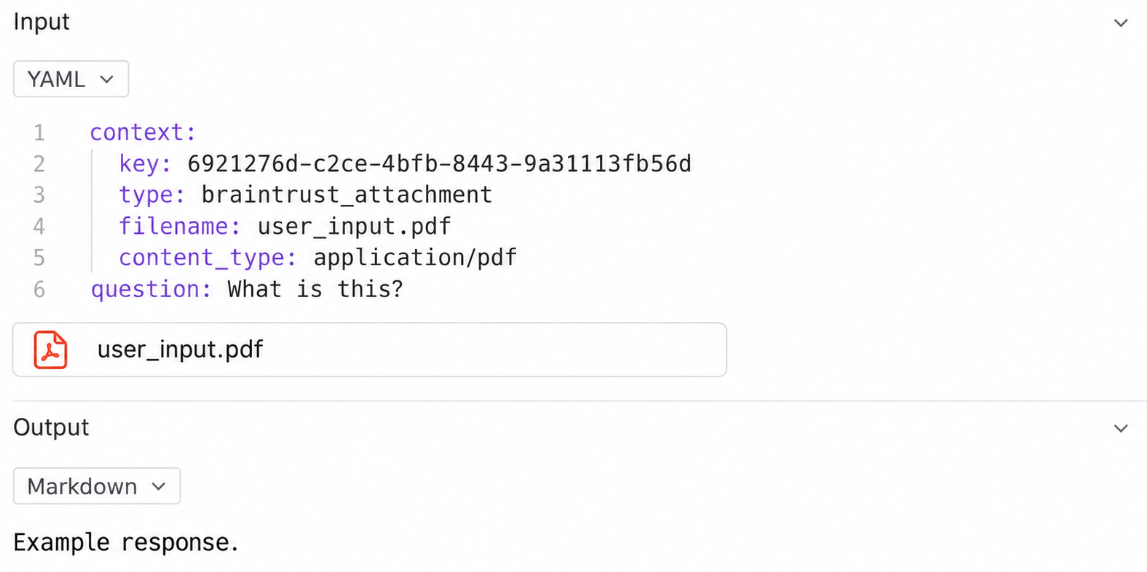
Step 2. Find the PDF trace in logs
Once the PDF is attached to the production run, locate the traces that contain file attachments in Braintrust Logs. The Logs filter editor supports SQL filters, and automatically converted attachments carry a braintrust_attachment reference in the span data.
Use this filter to return traces where that attachment reference appears on any span:
ANY_SPAN(search('braintrust_attachment'))
search() looks for the attachment reference, and ANY_SPAN() returns the complete trace when the match appears anywhere in its span tree, which catches PDFs sitting on a child model span below the root.
If an expected run does not appear, open the relevant span and inspect the Raw trace data for type: "braintrust_attachment". Once the PDF-bearing traces are identified, narrow the results with the feedback, score, or metadata signals that mark the bad answer, such as a low user rating or thumbs-down value.
Step 3. Add the PDF-bearing span to a dataset
Open the failing trace and select the span that contains both the PDF attachment and the user’s request. Choose Add to > Add this span to dataset, then select the regression dataset. Braintrust copies the selected span into the dataset row, preserving the inputs needed to reproduce the document task.
For multiple PDF failures, Braintrust can apply the same field mapping across production examples through a dataset pipeline. Teams backfilling documents from application storage can also insert the PDF directly into a dataset as an attachment with the SDK. The example below inserts a file; add the original request to input.question and a reviewed expected value before evaluating the row. Replace the example path with your actual PDF.
import os

from braintrust import Attachment, init_dataset


def create_pdf_dataset() -> None:
    dataset = init_dataset(project="Project with PDFs", name="My PDF Dataset")

    for filename in ["example.pdf"]:
        dataset.insert(
            input={
                "file": Attachment(
                    filename=filename,
                    content_type="application/pdf",
                    data=os.path.join("files", filename),
                )
            }
        )

    dataset.flush()


create_pdf_dataset()
Step 4. Record the reviewed expected behavior
Open the new dataset row and replace the expected value copied from the failed response with the reviewer-confirmed answer. Keep the target specific to the document task, such as the correct figure, clause, or page reference, so the revised output has a clear basis for evaluation.
Add the failure label, source span ID, prompt version, and model version to the row metadata so the test case stays connected to the production failure it came from. Cases that require subject-matter judgment can go through human review before joining the regression suite.
Step 5. Connect the PDF to the model’s file input
Create a playground from the regression dataset and select a model that supports file inputs. Confirm PDF support for the selected model before wiring the dataset row into the prompt, and check for unsupported-file warnings after attaching the document.
Add a user message, then choose + Message Part > File. The PDF can reach the model in two ways:
Public URL from row metadata: Reference the metadata field that stores the document URL with mustache syntax. Each dataset row can then supply its own PDF to the same prompt configuration.
Uploaded PDF: Download the attachment from the trace or dataset row and upload it through the paperclip control in the File message part. A manually uploaded file belongs to the prompt configuration and applies across rows, so use the single-row run option when reproducing one specific production failure.
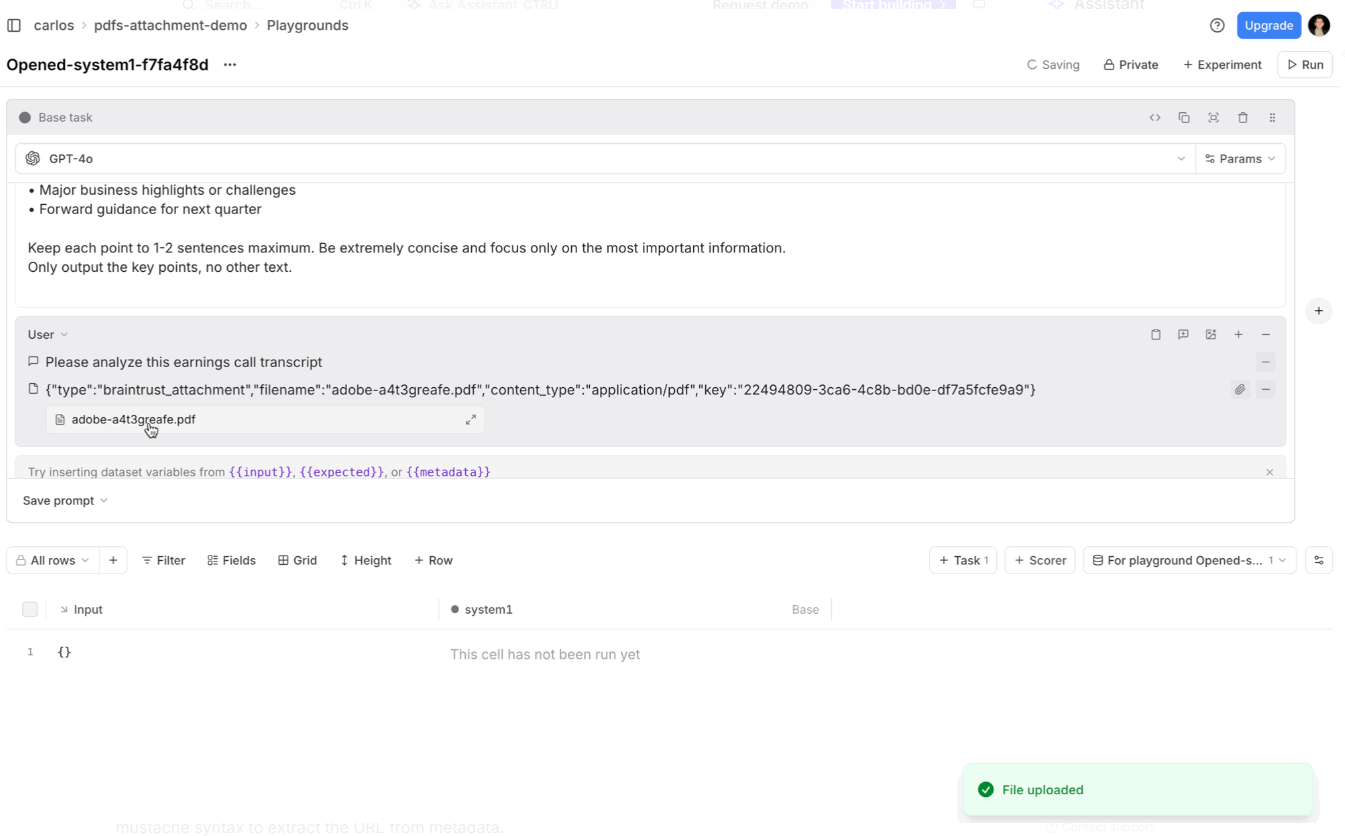
Place the user’s request in a Text part of the same user message and reference the dataset field that contains the question. Enabling Strict variables in the playground settings makes a missing request or file URL fail visibly instead of running the comparison with incomplete inputs.
Step 6. Compare the prompt change against the same PDF
Use the prompt version that produced the bad answer as the base task in the playground. If the prompt is already saved in Braintrust, select the historical version used for the failed production response. Add the revised prompt as a comparison task and connect both tasks to the same dataset row and File message part. The PDF and user request stay fixed, leaving the prompt change as the variable being tested.
Add a scorer that checks each response against the reviewed expected value. An LLM-as-a-judge scorer works for semantic checks such as whether the revised answer identifies the correct figure, clause, or conclusion from the document. For requirements that can be checked deterministically, use a code-based scorer instead.
Run both tasks and enable diff mode to inspect output changes alongside score, latency, and token-usage differences. Select the original failing row to compare the two results directly, then open the PDF and verify the revised response against the source page that exposed the failure. Run row reruns only that test case after another prompt edit, keeping iteration focused on the production example being fixed.
Step 7. Save the resolved comparison as an experiment
Playground results change as you rerun and refine the prompt, so save the validated comparison once the revised prompt resolves the PDF failure. Select + Experiment to preserve the run as an experiment with its inputs, outputs, scores, and model configuration.
The PDF case remains in the dataset for later evaluations and can join a regression suite that includes confirmed production failures. Future prompt or model changes can then be checked against the same source document, request, and reviewed expectation.
Start free with Braintrust and turn PDF production failures into reusable regression cases.
FAQs: reusable PDF test cases for LLM evaluation
Can Braintrust store PDFs from production traces?
Braintrust stores PDFs as trace attachments, either through supported provider instrumentation or an explicit Attachment in the SDK. The stored file remains accessible from the trace for later inspection or reuse.
Do Braintrust datasets support PDF attachments?
PDFs can be stored directly in dataset records, including files inserted through the SDK or carried over with a promoted span. The attachment reference is part of the reusable evaluation case; confirm that the file opens when validating the dataset.
Which models accept PDF file inputs in the Braintrust playground?
File-input support depends on the selected model. Use a model that accepts PDF documents through its configured provider, and check for unsupported-file warnings in the playground. The File control supports several media types, so its presence alone does not guarantee that a model can process PDFs.
What happens to a PDF test case after log retention expires?
A dataset row that only references the full production trace loses that source when the trace expires or is deleted. A copied span retains its stored data in the dataset, and a PDF inserted directly as a dataset attachment remains associated with that dataset record.
Should a PDF test case use an uploaded attachment or a public URL?
Use an uploaded attachment when the file is private or needs to remain under Braintrust storage. A public URL works well for documents already hosted publicly and lets each dataset row supply its own file, but the test remains dependent on that URL staying accessible.
How do you confirm a prompt change fixed the original PDF failure?
Run the original and revised prompts against the same dataset row and File message part, then compare the revised output with the reviewed expectation and the source PDF itself. Saving the validated run as an experiment preserves the result for later regression checks.