

Find a pattern
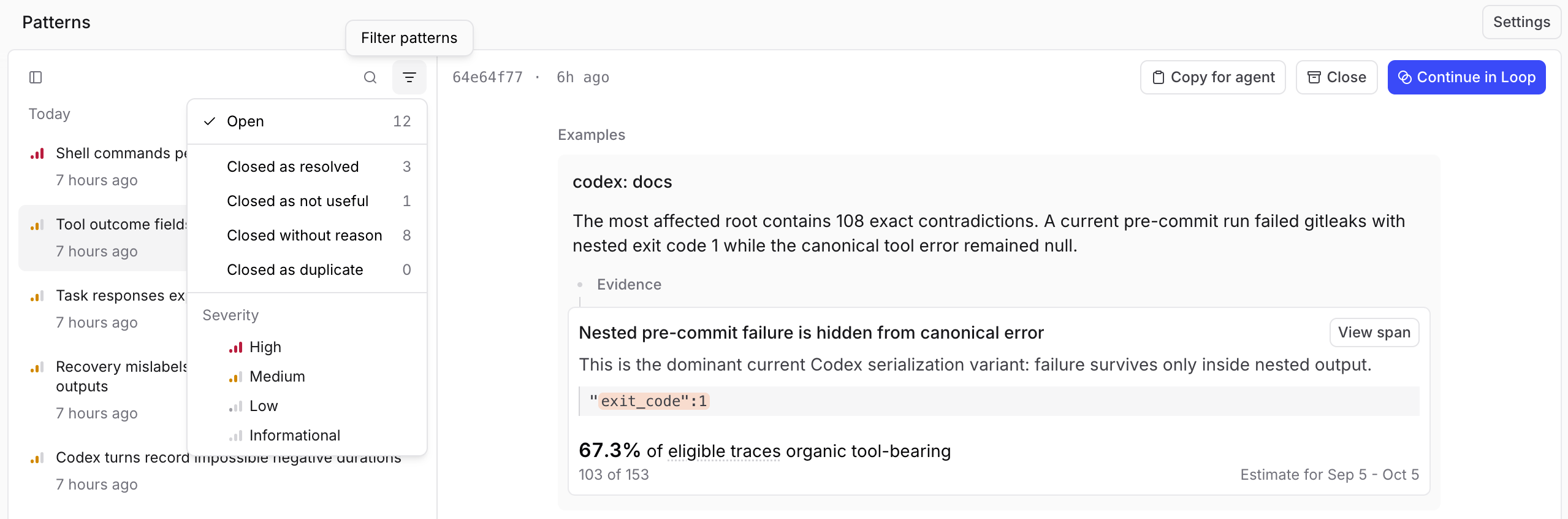
Go to Patterns and select a pattern from the list to open it. The list shows open patterns by default:- Click Filter patterns to choose Open, Closed as resolved, Closed as not useful, Closed without reason, or Closed as duplicate. Each option shows its pattern count.
- Under Severity, select one or more severity levels to combine with the status filter. The selection stays applied as you open patterns or change status, and is included when you share the page URL. If no patterns match, Reset filter clears both filters.
- When a project has more than one Patterns automation, each list row shows that automation’s name next to when the pattern was created, and Filter patterns lists each automation. Choose one to show only the patterns that automation discovered. A pattern a person created shows their name in the list even when the project has one Patterns automation. The pattern header shows that name.
- Use the search box above the list to search by name.
On self-hosted deployments, severity and duplicate management require data plane v2.18.0 or later.
Read a pattern
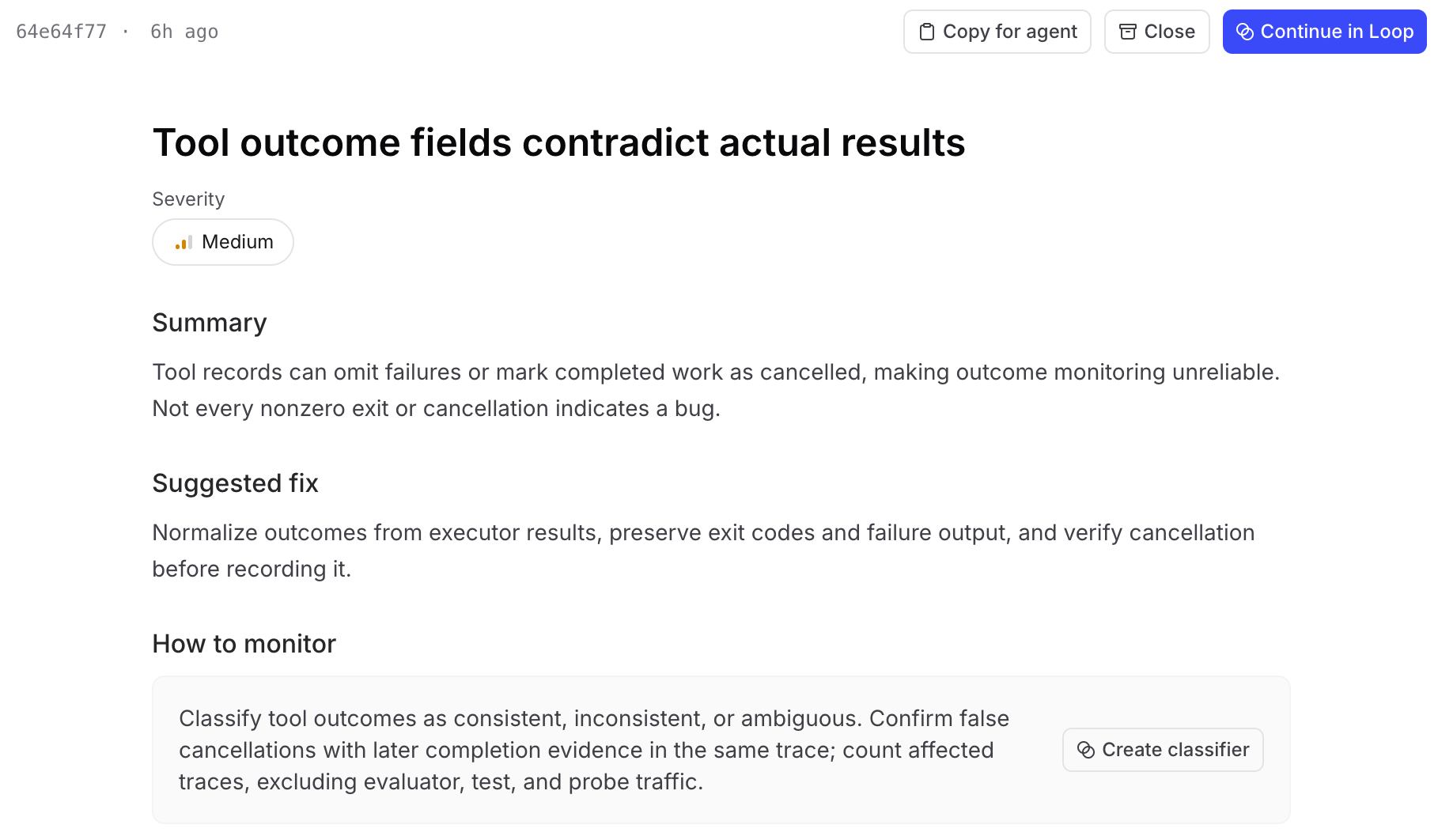
Check Loop’s reasoning against the evidence before acting. A pattern can include these sections:- Severity: The finding’s impact, from High to Informational.
- Summary: The finding and its context.
- Suggested fix: A recommended investigation or change, when available.
- How to monitor: A recommended scorer, classifier, or facet, when available. See Act on a pattern.
- Monitors: A Frequency chart when the behavior is measurable, plus charts for latency, cost, or score trends.
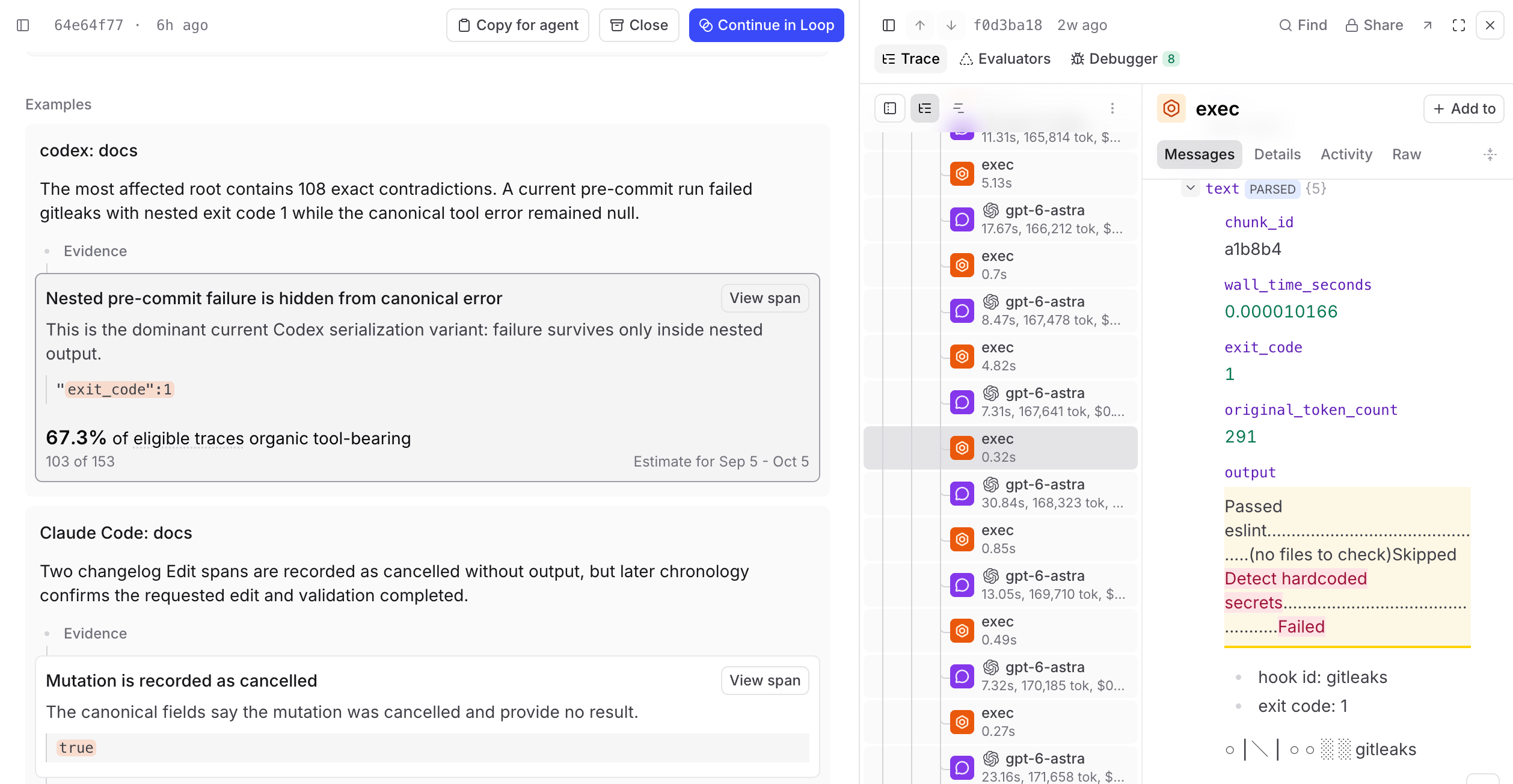
- Examples: Supporting traces with Loop’s notes quoted inline and frequency estimates when available.
Severity
The severity below a pattern’s name describes its impact:- High: Address promptly. The issue likely causes severe or widespread harm, including monetary loss or fraud for end users.
- Medium: A real issue worth fixing, with less urgency.
- Low: A minor issue with limited impact.
- Informational: An observation that needs no immediate action.
Update permission, granted to Owners and Engineers permission groups by default. Loop preserves your correction in future runs.
Frequency
The Frequency chart shows the percentage and number of affected traces. Each trace counts once, even if several spans match. Use the selector above the chart to change the time range.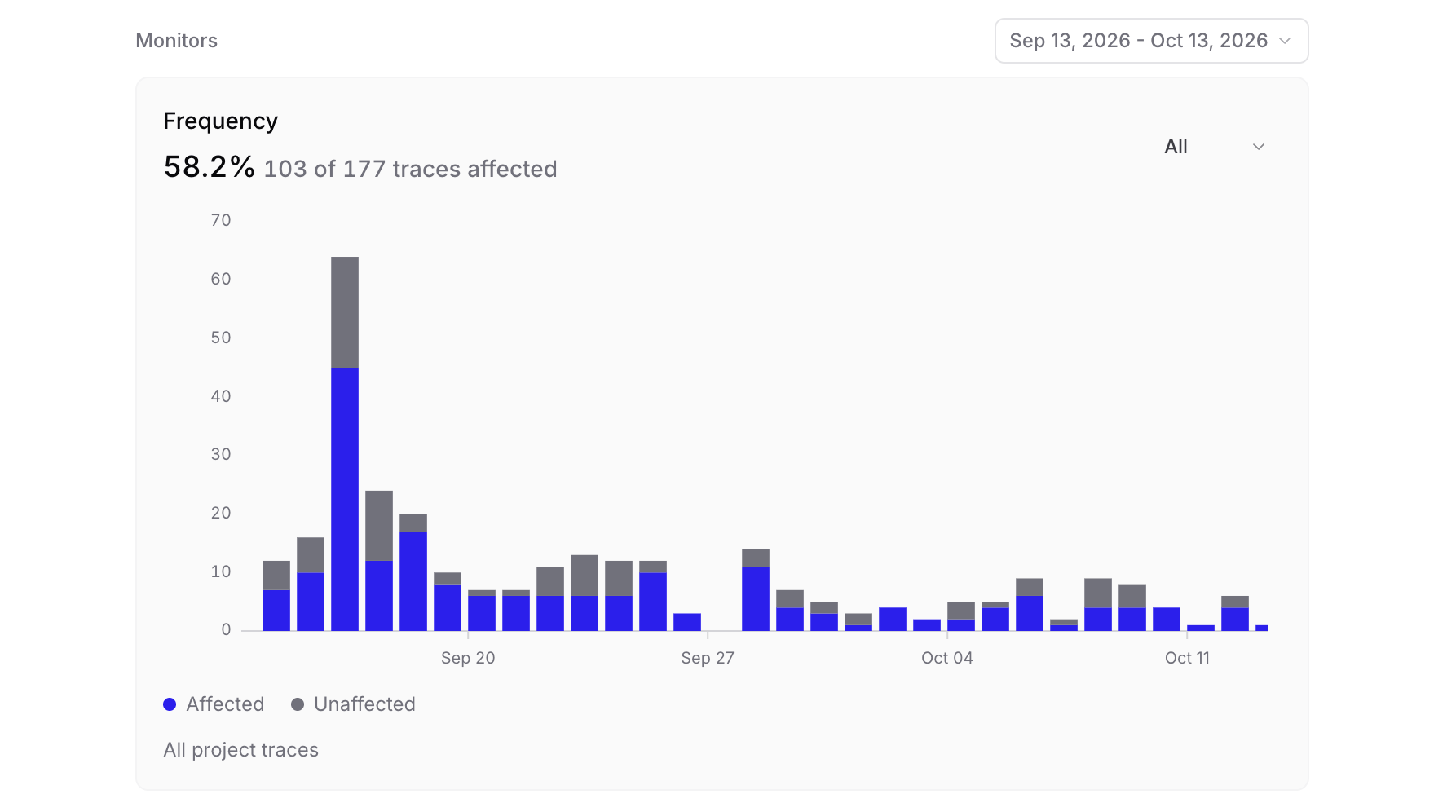
- All (default): The share across your project.
- Similar: The share of comparable traces affected, such as requests for the same operation.
Examples
Examples shows up to three traces, skipping repeated evidence. Loop prioritizes impact, measured prevalence, clarity, and distinct information about the cause or fix.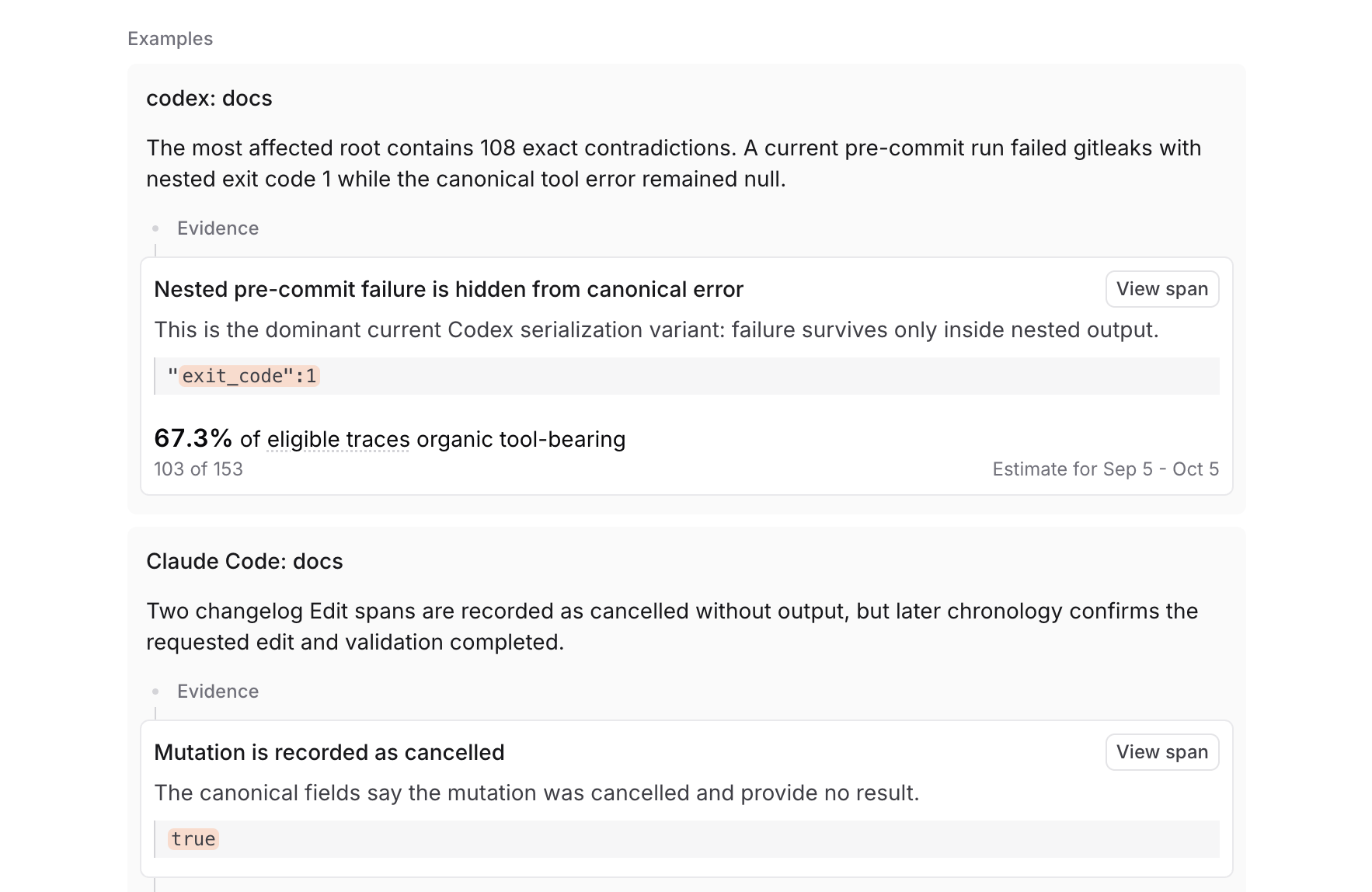
- Counts and scope: Each estimate shows the span or trace count, measured population, and observation window. A measured total adds a percentage. Hover over Estimate for to see the exact window in UTC.
- Timing: Estimates are saved snapshots, independent of the Frequency chart’s time range.
- Availability: Loop omits estimates when the signal or data coverage is insufficient. Existing examples can gain estimates when Loop refreshes their evidence.
Cmd/Ctrl or Shift while you click.
Act on a pattern
Choose an action based on whether you want to investigate, track, fix, or share the finding.Keep investigating
Select Continue in Loop to investigate the pattern in a new Loop chat on the Patterns page. If an existing conversation is active, Loop starts a new chat. If you’re already on a blank new chat, it uses that chat. The pattern is attached as context, with a badge showing its name. You can also use Loop while browsing the patterns list. Opening a pattern adds it as context to the current chat without starting a new one.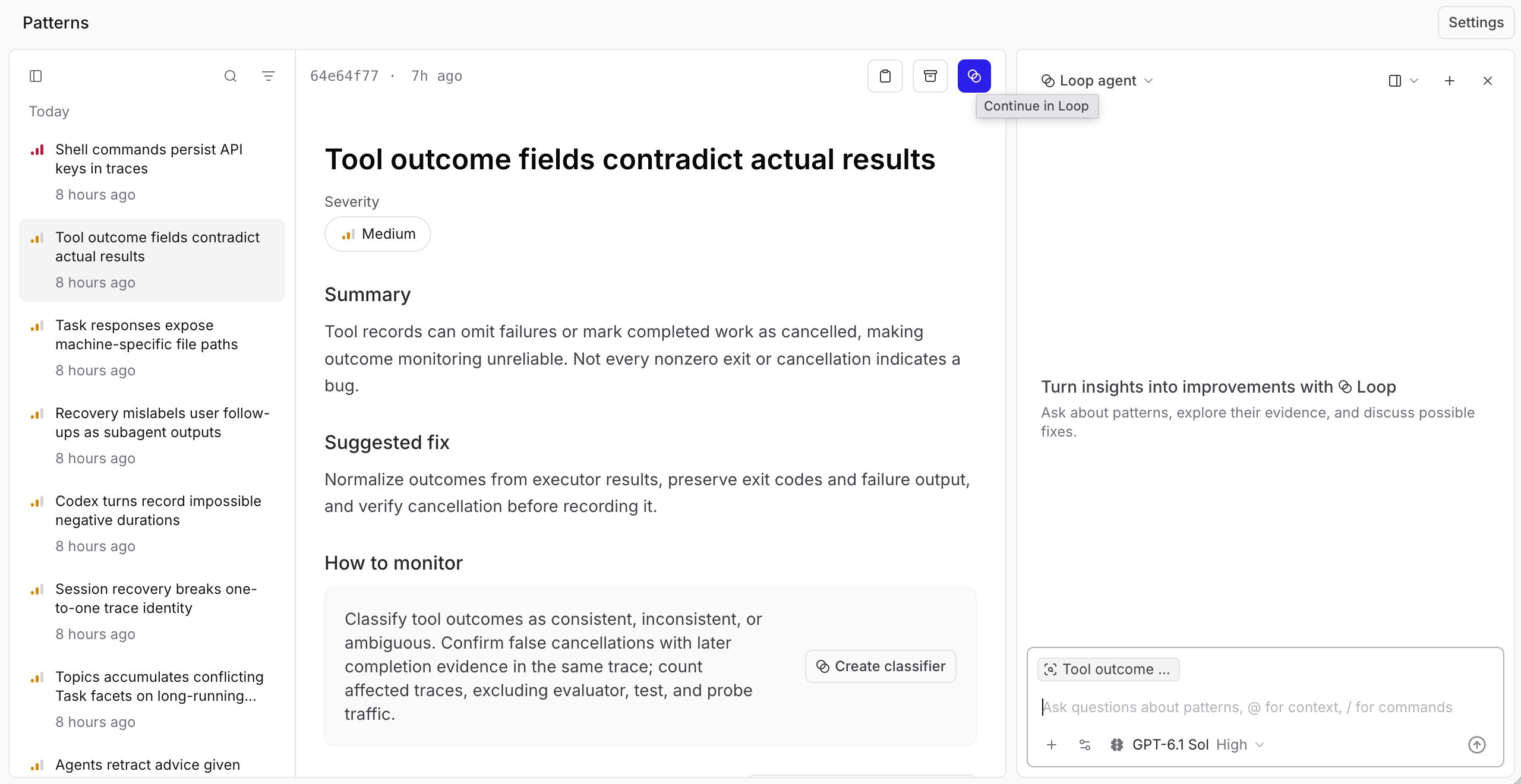
Make it measurable
Under How to monitor, click Create scorer or Create classifier, depending on Loop’s recommendation. Loop opens with a prefilled prompt to create and enable the evaluator, attach a monitor chart to the pattern, and remove the fulfilled recommendation. Decide separately whether to backfill historical traces. This tracks the behavior continuously at lower cost than repeated investigation. Loop can also create a facet so Topics classifies the behavior across all your traces.
Hand it to a coding agent
Click Copy for agent in the pattern header. Braintrust copies a Markdown brief with the pattern’s status and close outcome, summary, suggested fix, saved frequency estimates, and up to three prioritized trace IDs. The brief includes available evidence details andbt CLI instructions for retrieving full traces. When more evidence is available, it includes a bt sql command to retrieve it. Paste the brief into your coding agent to start work on a fix.
For a duplicate, the brief also includes a Duplicate of: line with the canonical pattern’s ID.
Share it
When the pattern is open in Loop’s workspace, click Copy link in its header. The link only works for people who already have project access.Close or reopen
Closing and reopening requires the project’sUpdate permission, granted to Owners and Engineers permission groups by default. Without it, you can read patterns and evidence, but the Close and Reopen buttons don’t appear.
Close a pattern when you’ve acted on it or decided it isn’t useful:
- Click Close in the pattern header.
- Optionally choose Resolved if the problem is fixed, addressed, or no longer happening, or Not useful if it’s noise, transient, or unimportant.
- Add optional feedback, then click the close button below the feedback field.
How Loop uses closure feedback
How Loop uses closure feedback
Loop uses the outcome and your feedback when evaluating related findings:
- Not useful tells Loop not to automatically reopen or recreate a matching pattern while your reason still applies.
- Resolved, or closing without an outcome, allows Loop to reopen the existing pattern if the behavior recurs, unless your feedback says otherwise.
- Free-text feedback defines the scope of your judgment. If you dismiss synthetic staging traffic but new evidence comes from production, Loop evaluates that evidence independently. Be specific about what you want to dismiss and any conditions for reopening.
When Loop closes patterns automatically
When Loop closes patterns automatically
Scheduled runs also review active patterns. Loop can close a pattern when recent, relevant data shows that the behavior has stopped. Missing data or a failed query is not evidence that it has stopped.
How Loop handles duplicate patterns
How Loop handles duplicate patterns
When several patterns describe the same finding, Loop chooses one as the canonical pattern, merges useful evidence into it, and closes the others as duplicates. Each duplicate retains its history. Its header has a Duplicate of link to the canonical pattern, and the closure banner shows who closed it and why.If the behavior recurs, Loop updates or reactivates the canonical pattern instead of reopening the duplicate.
Next steps
- Write scorers to measure a behavior a pattern surfaced.
- Build datasets from the traces behind a pattern, then run an experiment to test a fix.
- Create custom facets to track the behavior across every trace.
- Debug a trace to dig into a single piece of evidence.