

Annotate your code
You can add traces for multiple, specific functions in your code to your logs by annotating them with functional wrappers (TypeScript) or decorators and context managers (Python):Add names to traces
You can add custom names to traces using thename parameter. If you don’t provide a name, the SDK will use the function name or “anonymous” if the function is unnamed.
Wrap LLM clients
Wrap OpenAI
For information about how to wrap OpenAI clients, check out the OpenAI provider docs.Wrap Anthropic
For information about how to wrap Anthropic clients, check out the Anthropic provider docs.Wrap Gemini
For information about how to wrap Google Gemini clients, check out the Gemini provider docs.Wrap a custom LLM client
If Braintrust does not automatically wrap the LLM client, proxy, or provider SDK you use, or if you need manual control over tracing, use the Braintrust SDK to wrap the model call. The SDK creates a span for you, and you can use it to log the model input, output, metadata, and metrics.- TypeScript
- Python
 TypeScript
 Python
In TypeScript, wrap the model call with
traced(...), which creates a span, sets it as the current span for the duration of your callback, passes the span to your callback, and returns the callback’s result.traced(...) takes these arguments:- Callback: The function that contains the model call. Braintrust passes the span as its argument.
- Args: Span configuration. In the example above,
type: "llm"andname: "My LLM call"are stored asspan_attributes.typeandspan_attributes.name.
If you trace application functions with
wrapTraced(...) in TypeScript or @traced(...) in Python, still create the LLM span around the model call itself. Function wrappers automatically log function inputs and outputs, which may not match the LLM-specific input and output fields you want to store.Trace distributed systems
When traces span multiple services or processes, you can export and resume traces across boundaries using theexport() method.
Trace multimodal content
Braintrust supports uploading file attachments like images, audio, video, and PDFs alongside your traces. This is especially useful for multimodal models and visual evaluations. For large JSON data structures, useJSONAttachment to bypass size limits.
See the Attachments guide for detailed examples on:
- Uploading files (images, audio, video, PDFs)
- Logging large JSON data (conversation transcripts, document collections)
- Linking external files (S3 and other object stores)
- Inline attachments (external URLs and base64 images)
Trace errors
When you run:- Python code inside of the
@traceddecorator or within astart_span()context - TypeScript code inside of
traced(or awrappedTracedfunction)
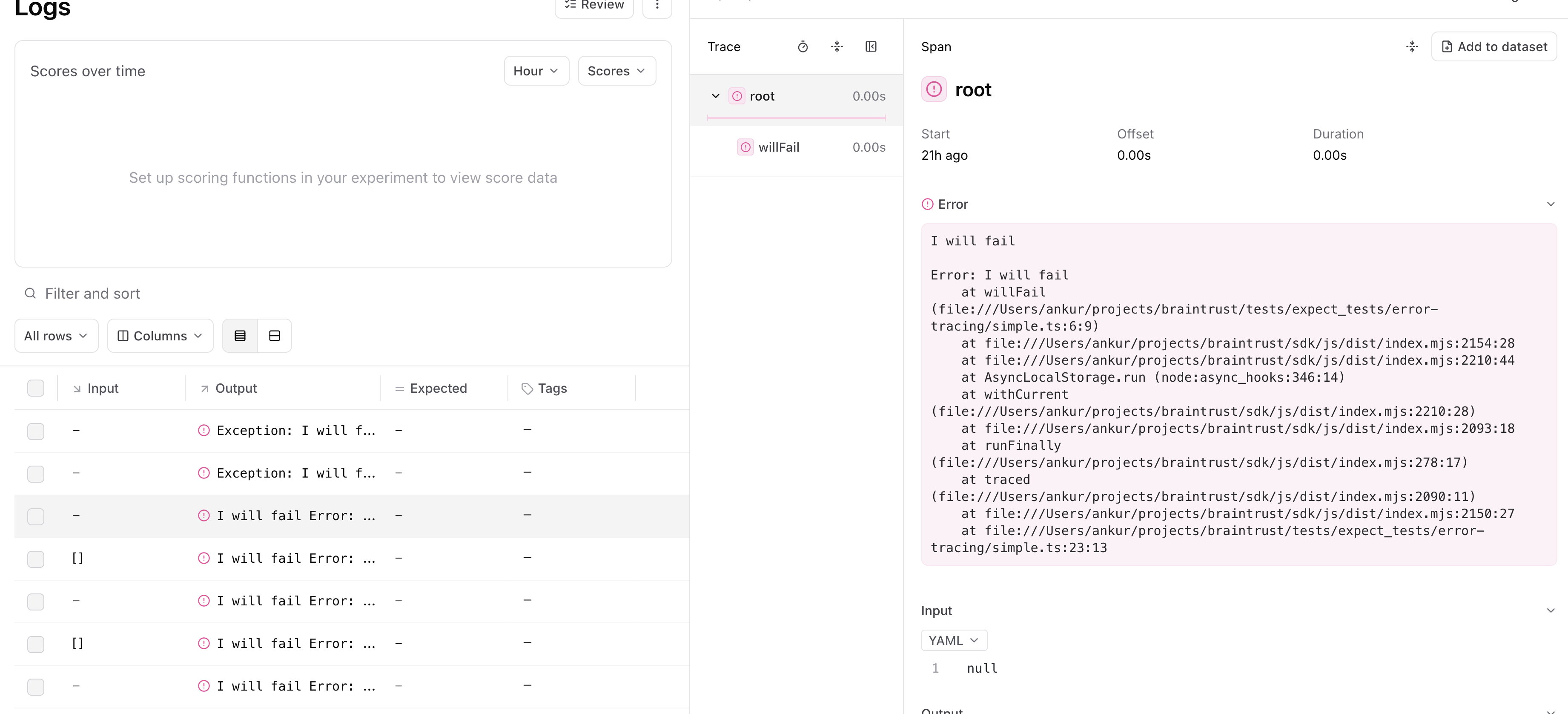
error field which you can also log to directly.
Trace deeply nested code
Often, you want to trace functions that are deep in the call stack, without having to propagate thespan object throughout. Braintrust uses async-friendly
context variables to make this workflow easy:
- The
tracedfunction/decorator will create a span underneath the currently-active span. - The
currentSpan()/current_span()method returns the currently active span, in case you need to do additional logging.
Redact sensitive data
Traces can contain personal information, credentials, and other sensitive data. Braintrust lets you redact this information in two ways:- During ingestion: Braintrust detects and redacts sensitive text after it receives your logs and before it stores them.
- Before upload: SDK masking functions and span customizers, or
btspan plugins, remove it inside your application or on your machine, so what they remove never reaches Braintrust.
Update spans
Similar to distributed tracing, it can be useful to update spans after you initially log them. For example, if you collect the output of a span asynchronously. TheExperiment and Logger classes each have an updateSpan() method, which you can call with
the span’s id to perform an update.
span.export() to export the span in a fully contained string, which is useful if you
have multiple loggers or perform the update from a different service.
Deep link to spans
TheSpan.permalink method formats a permalink to the Braintrust application
for viewing the span. The link will open the UI to the row represented by the
Span object.
If you do not have access to the original Span object, the slug produced by
Span.export contains enough information to produce the same permalink. The
braintrust.permalink function can be used to construct a deep link to the row
in the UI from a given span slug.
To build a trace or span link by hand instead, see Link to a trace or span.
Manually manage spans
In more complicated environments, it may not always be possible to wrap the entire duration of a span within a single block of code. In such cases, you can always pass spans around manually. Consider this hypothetical server handler, which logs to a span incrementally over several distinct callbacks:Import and export spans
Spans are processed in Braintrust as a simple format, consisting ofinput, output, expected, metadata, scores,
and metrics fields (all optional), as well as a few system-defined fields which you usually do not need to mess with, but
are described below for completeness. This simple format makes
it easy to import spans captured in other systems (e.g. languages other than TypeScript/Python), or to export spans from
Braintrust to consume in other systems.
Underlying format
The underlying span format contains a number of fields which are not exposed directly through the SDK, but are useful to understand when importing and exporting spans.idis a unique identifier for the span, within the container (e.g. an experiment, or logs for a project). You can technically set this field yourself (to overwrite a span), but it is recommended to let Braintrust generate it automatically. See Identify spans and traces.input,output,expected,scores,metadata, andmetricsare optional fields which describe the span and are exposed in the Braintrust UI. When you use the TypeScript or Python SDK, these fields are validated for you (e.g. scores must be a mapping from strings to numbers between 0 and 1).span_attributescontains attributes about the span. Currently the recognized attributes arename, which is used to display the span name in the UI, andtype, which displays a helpful icon.typeshould be one of"llm","score","function","eval","task","tool", or"review".- Depending on the container, e.g. an experiment, or project logs, or a dataset, fields like
project_id,experiment_id,dataset_id, andlog_idare set automatically, by the SDK, so the span can be later retrieved by the UI and API. You should not set these fields yourself. span_id,root_span_id, andspan_parentsare used to construct the span tree and are automatically set by Braintrust. You should not set these fields yourself, but rather let the SDK create and manage them (even if importing from another system). See Identify spans and traces.
input, output, expected, scores, metadata, and metrics.
You can use the SDK to populate the remaining fields, which the next section covers with an example.
Here is an example of a span in the underlying format:
Example import/export
The following example walks through how to generate spans in one program and then import them to Braintrust in a script. You can use this pattern to support tracing or running experiments in environments that use programming languages other than TypeScript/Python (e.g. Kotlin, Java, Go, Ruby, Rust, C++), or codebases that cannot integrate the Braintrust SDK directly.Generate spans
The following example runs a simple LLM app and collects logging information at each stage of the process, without using the Braintrust SDK. This could be implemented in any programming language, and you certainly do not need to collect or process information this way. All that matters is that your program generates a useful format that you can later parse and use to import the spans using the SDK.Import spans
The following program uses the Braintrust SDK in Python to import the spans generated by the previous script. Again, you can modify this program to fit the needs of your environment, e.g. to import spans from a different source or format.Run traced functions in a ThreadPoolExecutor
The Python SDK uses context variables to hold the span state for traces. This means that if you run a traced function inside of aconcurrent.futures.ThreadPoolExecutor,
the span state will be lost.
Instead, you can use the TracedThreadPoolExecutor class provided by the Braintrust SDK.
This class is a thin extension of concurrent.futures.ThreadPoolExecutor
that captures and passes context variables to its workers.
Disable logging
If you are not running an eval or logging, then the tracing code will be a no-op with negligible performance overhead. In other words, if you do not call initLogger/init_logger/init, in your code, then the tracing annotations are a no-op.Trace data structures
A trace is a directed acyclic graph (DAG) of spans. Each span can have multiple parents, but most executions are a tree of spans. Currently, the UI only supports displaying a single root span, due to the popularity of this pattern.Background logging and retries
If the Braintrust SDK cannot log for some reason (e.g. a network issue), then your application should not be affected. All logging operations run in a background thread, including api key validation, project/experiment registration, and flushing logs. When errors occur, the SDK retries a few times before eventually giving up. You’ll see loud warning messages when this occurs. And you can tune this behavior via the environment variables defined in Tune performance. The trace data durability guarantee begins when the ingestion API returns a successful response.Log to multiple projects
When logging to multiple projects, create separate loggers withsetCurrent: false to avoid conflicts.
Initialize login
The logger lazily authorizes against Braintrust when it is first used. This information is shared across loggers, but you may want to explicitly calllogin() once to avoid having to pass in an API key to each logger (or to use the BRAINTRUST_API_KEY environment variable).
There is a lower-level mechanism which can even let you use different API keys for different loggers, but it’s not documented or officially supported. Get in touch if you need this.
Flush logs manually
The SDK buffers logs in memory and sends them in batches to improve performance. WhenasyncFlush / async_flush is enabled (the default), you can use the .flush() method to manually flush any outstanding logs to the server.
Call flush() during cleanup to send pending span data before your program exits. Check for logging failures even after the call returns.
atexit flush hook by default. If your runtime manages shutdown explicitly, set BRAINTRUST_DISABLE_ATEXIT_FLUSH=1 and call logger.flush() yourself during cleanup. This is useful in serverless and long-running service environments where you want explicit control over shutdown behavior.
Customize span rendering
The built-in span viewers cover a range of span field display types, includingYAML, JSON, Markdown, and LLM calls. A span iframe renders a field with your own code instead, which is useful when you want to fetch and display data from an external system, such as the contents of a record whose id is in the span, or reformat span data in a way the built-in viewers don’t support.
Span iframes also support interactive features. For example, you can add a thumbs up or thumbs down control to an image search result and write the score back to the span’s expected or metadata field.
A span iframe receives span data two ways, and you choose either or both when you configure it:
- URL parameters: Templated into the URL with mustache, in terms of top-level span fields such as
{{input}},{{output}}, or{{expected}}, or their subfields, such as{{input.question}}. For example,https://example.com/{{input.id}}?q={{metadata.foo.bar}}. - Posted messages: Braintrust posts the span data to the iframe on load. Use this when the data is too large to fit in a URL, or when the iframe needs to write data back to the span.
Host your iframe
Span iframes run your code, so you host them yourself, either in your own infrastructure or on a cloud hosting service. The URL must usehttp:// or https://, cannot include a username or password, and must be reachable from the browser viewing the trace. Braintrust loads it in a sandboxed iframe that permits scripts, forms, popups, and modals, and preserves the framed page’s origin. It does not permit top-level navigation.
To see which fields are available in a span before you write any code, configure a span iframe pointing at https://v0-render-iframe-data.vercel.app/ and enable Post span data. It renders the posted span data as a JSON object.
iframe message format
In Zod format, the message schema looks like this:{ "type": "request-data" } from your frame code.
Example code
The braintrustdata/braintrust-viewers repository on GitHub contains example viewers you can use directly or as starter code, including a table viewer and one that renders embedded X posts.Tune performance
Configure SDK behavior with environment variables for your deployment needs:BRAINTRUST_SYNC_FLUSH: Set to1to flush synchronously instead of in background. Useful for debugging but impacts performance.BRAINTRUST_MAX_REQUEST_SIZE: Maximum batch payload size. Defaults are tuned for AWS Lambda.BRAINTRUST_DEFAULT_BATCH_SIZE: Maximum number of log messages per network request.BRAINTRUST_NUM_RETRIES: Network retry attempts before failing.BRAINTRUST_QUEUE_SIZE(Python): Maximum logging queue size. Additional logs drop oldest elements.BRAINTRUST_QUEUE_DROP_EXCEEDING_MAXSIZE(JavaScript): Cap queue size and discard additional elements.BRAINTRUST_FLUSH_BACKPRESSURE_BYTES(JavaScript): Byte threshold for flush backpressure during evaluations. WhenmaxConcurrencyis set, the SDK only flushes logs when pending data exceeds this threshold, avoiding excessive sequential round-trips for small payloads while bounding memory usage for large ones. Defaults to 10 MB.BRAINTRUST_CACHE_LOCATION(JavaScript): Selects where prompt and parameter caching stores data. Accepts"mixed"(default),"memory","disk", or"none". Invalid values warn and fall back to"mixed". Disk caching is unsupported on some platforms, where it is disabled.BRAINTRUST_DISABLE_ATEXIT_FLUSH(Python): Disables the automatic flush that Braintrust registers at process exit. When set to1, pending logs are not flushed on interpreter shutdown, so applications should calllogger.flush()explicitly. Useful for runtimes with custom shutdown handling. Disabled by default.
BRAINTRUST_DEBUG_LOG_LEVEL(TypeScript): Set to"error","warn","info", or"debug"to enable internal SDK troubleshooting output. Useful for diagnosing flush failures, API retry behavior, and instrumentation lifecycle. You can also set this programmatically via thedebugLogLeveloption oninit(),initLogger(), and other entry points. Disabled by default.
BRAINTRUST_FAILED_PUBLISH_PAYLOADS_DIR: Directory for failed payloadsBRAINTRUST_ALL_PUBLISH_PAYLOADS_DIR: Directory for all payloadsBRAINTRUST_ENABLE_TRACE_CONSOLE_LOG(Go): Set totrueto log all traces to stdout for debugging. Use during local development, not in production. The programmatic equivalent is theWithEnableTraceConsoleLog(bool)option on the Go client. Defaults tofalse.
Next steps
- Capture user feedback on your traces
- Log attachments like images and audio
- View your logs in the Braintrust dashboard