

How to test AI features in a Lovable app before deploying changes
When Lovable's preview and published app use the same backend, changes to an existing Edge Function can reach live users before the frontend is published. To test a prompt or model change safely, create a separate candidate function and evaluate it against the production version using representative requests, known failures, and regression cases.
Braintrust helps builders capture production requests, turn them into evaluation datasets, and define scorers for both the improvement a change targets and the existing behavior it must preserve. Playgrounds support early prompt and model comparisons, while remote evals execute the actual Edge Functions. Comparing the resulting experiments shows whether the candidate improves the intended behavior, preserves existing functionality, and meets the application's release criteria.
Once the candidate passes, apply the tested configuration to production and rerun the evaluation to verify the deployed change. Start free with Braintrust to evaluate your next Lovable AI update before release →
Release criteria for prompt and model changes in Lovable
A prompt or model change should improve the behavior it targets without introducing regressions in requests the app already handles correctly. For example, improving the accuracy of AI-generated summaries should not cause an existing classification feature to return incorrect categories. A release evaluation needs to measure both behaviors against representative requests and identify errors or performance changes that could affect users.
Lovable's preview keeps unpublished frontend changes separate. This tutorial assumes the preview and published app use the same backend resources. Changes to an existing Edge Function can therefore affect live users before the frontend is published. Testing the proposed change in a separate candidate function preserves the production endpoint while the new configuration is evaluated.
Braintrust can run the same dataset against both Edge Functions through a remote eval. Comparing the resulting experiments shows whether the candidate meets the defined quality and performance requirements, giving builders evidence to review before applying the change to production.
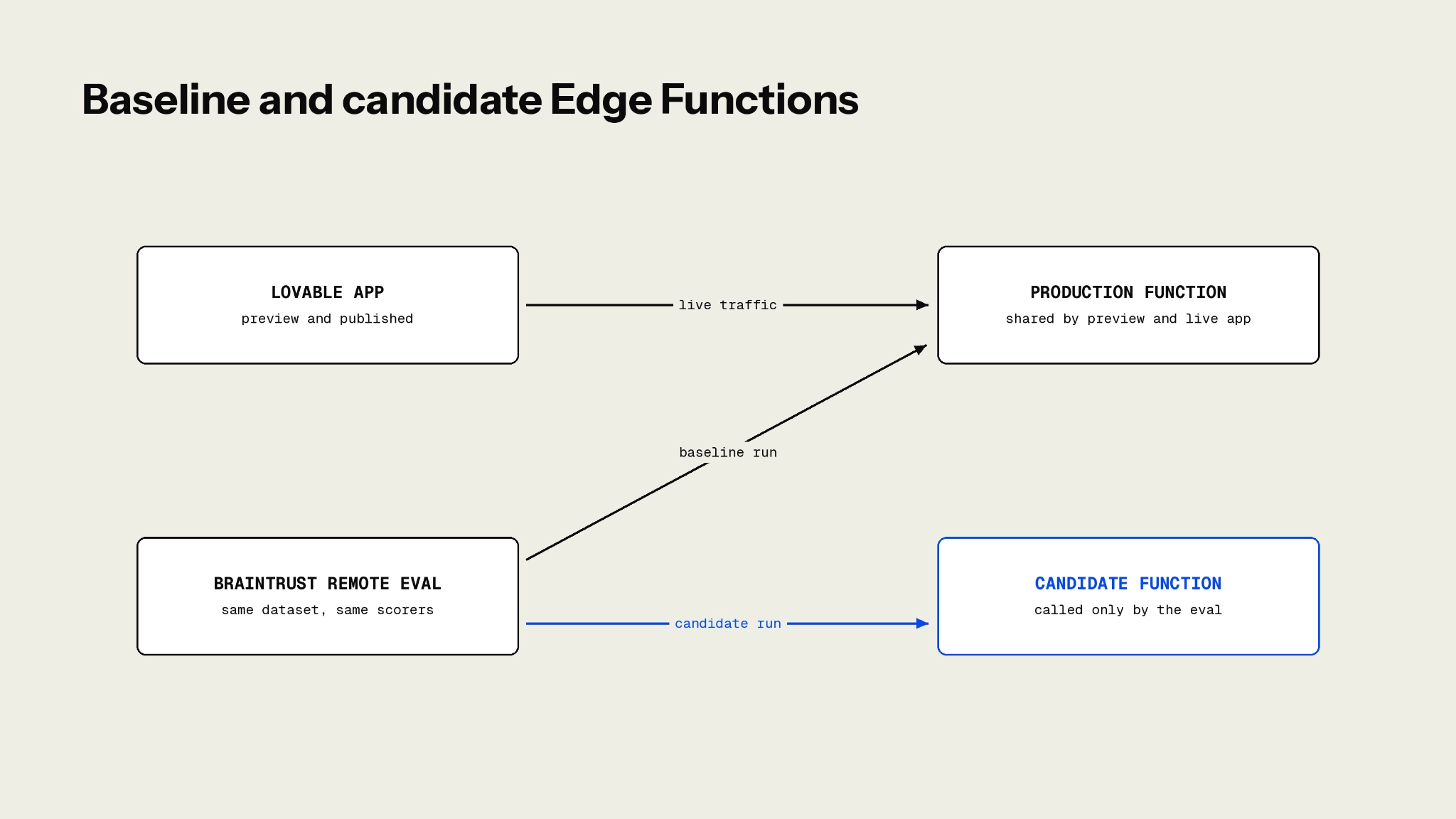
Live traffic continues using the production Edge Function while Braintrust evaluates both endpoints against the same test cases.
Also read: Best no-code AI agent builders in 2026
Prerequisites for testing a Lovable AI feature
Before starting, make sure you have the following:
A Lovable AI feature in an Edge Function: The feature can run on Lovable Cloud or a Supabase project connected to Lovable. Open More → Cloud → Edge functions, select the function, and use Copy URL to get its endpoint. You can also ask Lovable for the URL in chat.
A Braintrust account and API key: Sign up for Braintrust and create an API key under Settings. You'll use the key to connect the Edge Function to Braintrust.
An AI provider key in Braintrust: Configure a provider key before Step 5 so you can test prompt and model variations in the playground.
Node.js on your computer: Install a current LTS release from nodejs.org. The local evaluation server in Step 7 runs on it.
Step 1: Define the AI request, expected behavior, and regression check
Start with one AI feature and identify the Edge Function responsible for handling its requests. For this tutorial, we'll use a feedback-triage feature whose analyze-feedback function receives customer feedback and returns a one-sentence summary and a category from a predefined list.
Record the exact JSON body the frontend sends to the function. In our example, the request follows the format {"feedback": "..."}. You can inspect the function in Lovable's code editor to confirm the request structure, then verify that the same input appears in the Braintrust trace created in Step 2.
Next, define the improvement and the existing behavior that must be preserved. The target is to generate summaries containing only information supported by the customer's feedback. The regression check verifies that category labels remain correct because the app's filters depend on them. Record the permitted category labels and expected response structure so the scorers can check both behaviors consistently.
The resulting test definition establishes what the dataset must contain and what the candidate needs to demonstrate before release.
Step 2: Add Braintrust logging to the Supabase Edge Function
Logging records the AI feature's requests and responses as traces in Braintrust, providing the real application data needed to build the evaluation dataset in Step 3. Start by adding a server-side API key, then ask Lovable to instrument the existing Edge Function without changing its behavior.
Store the Braintrust API key as a secret
In Lovable, open More → Cloud → Secrets, select Add secret, and save your Braintrust API key as BRAINTRUST_API_KEY.
Lovable injects secrets into Edge Functions without exposing them to the browser. Keep the Braintrust API key out of variables prefixed with VITE_, which are included in the frontend bundle.
Ask Lovable to add logging
Paste the following prompt into Lovable chat, replacing the bracketed placeholders with your function and Braintrust project names.
Add Braintrust logging to the [function name] Edge Function.
1. Preserve the existing prompt, model, request and response formats, authentication, CORS configuration, and error handling.
2. Initialize Braintrust using the BRAINTRUST_API_KEY server-side secret and set projectName to "[Braintrust project name]".
3. Create a root span named "[function name]". Log the parsed request body as its input and the actual JSON response as its output.
4. Create an ai_call child span around the existing model call. Log the messages sent to the model, the model response, and the model name as metadata.
5. Use EdgeRuntime.waitUntil() to flush logs in the background without blocking the response.
6. Keep the AI feature functional if Braintrust logging is unavailable. Record logging errors in the Edge Function logs for troubleshooting.
7. Exclude API keys, authentication tokens, and other sensitive information from traces. Preserve the request and response structures needed for evaluation.
Integrate logging into the existing function without replacing its application logic. Show the updated code and explain any changes to the request handler.
The root span records the request and response, allowing approved traces to become dataset rows. The ai_call child span captures the model interaction for prompt analysis in Braintrust. Supabase's background tasks support background uploads without blocking the request, although logging failures and execution limits still need to be handled.
Verify the trace
Run the feature using a few approved test requests in Lovable's preview, then open Logs in your Braintrust project. Select a trace and confirm that the root span contains the expected request and response structures and that the ai_call span records the model messages and model name.
Check that the application still returns the same response structure as before instrumentation. If no traces appear, verify the secret name and Braintrust project name, then inspect the Edge Function logs for logging errors.
For more detail on nested spans and metadata, see the TypeScript tracing guide.
Step 3: Build a test dataset from real requests and known failures
Build a dataset that reflects the requests your Lovable feature receives and the behaviors the proposed change needs to improve or preserve. Include three types of test cases:
-
Representative requests: Sample ordinary requests from recent traffic, covering the different inputs users commonly submit.
-
Known failures: Include requests where production returned an incorrect result that the proposed change should fix, such as a summary that introduces a cause the customer never mentioned.
-
Regression guards: Add requests that production already handles correctly, especially cases where incorrect category labels would disrupt the app's filters.
Promote production traces into a dataset
In Braintrust, open Logs, select the relevant traces, and choose Add to → Add to dataset. Braintrust maps the selected span's input to the dataset row's input field and typically copies its output into expected.
Review the expected values before using them for scoring. Production outputs may contain the mistakes you're trying to fix, so correct the expected category for known failures and verify the values for regression guards. For the feedback-triage example, each row's expected value should contain the verified category that the scorer in Step 4 will check.
Use request bodies for remote evals. The Add full trace to dataset and Add group to dataset options store trace references in the row's input field. The remote eval in Step 7 sends that input directly to the Edge Function, which expects a JSON request body. Use the standard Add to dataset option so each row contains the request structure the function accepts.
Add missing cases and organize the dataset
Known failures that aren't available in Logs can be added through a CSV upload in Datasets. Braintrust lets you map columns to Input, Expected, Metadata, or Tags. Check the upload preview to confirm that each row contains the correct request fields and expected values before importing it.
Add a metadata field named case_type to distinguish representative, known_failure, and regression_guard rows. Step 8 will use these labels to examine improvements and regressions separately.
Also read: How to turn LLM production failures into regression tests.
Step 4: Define scorers for the intended change and existing behavior
Create separate scorers for the improvement and regression criteria defined in Step 1. For the feedback-triage feature, summary faithfulness measures whether generated summaries accurately reflect customer feedback, while category accuracy checks whether the function assigns the correct label. Tracking both scores separately makes it possible to identify improvements that introduce regressions.
Braintrust supports three scoring methods:
-
Custom code scorers check deterministic requirements, such as exact category matches, required response fields, and valid output formats. You can write them in TypeScript or Python.
-
LLM-as-a-judge scorers assess criteria that require interpretation, such as whether a summary introduces information unsupported by the original feedback.
-
Autoevals provide prebuilt scorers for common checks, including factuality and semantic similarity. Use them when their scoring criteria match the feature's requirements.
Create the scorers with Loop
Loop, Braintrust's AI assistant, lets team members describe evaluation requirements in natural language and generate scorers without writing code manually.
Use the following prompts to create two scorers for the feedback-triage feature.
Prompt 1: Summary faithfulness
Create an LLM-as-a-judge scorer named summary_faithfulness.
Compare output.summary with input.feedback.
Return 1 when the summary contains a meaningful, one-sentence description and every factual claim is supported by the customer's feedback.
Return 0 when the summary is missing, empty, or introduces unsupported information, including invented causes, devices, versions, or customer feelings.
Prompt 2: Category accuracy
Create a code scorer named category_match.
Return 1 when output.category exactly matches expected.category.
Return 0 when the categories differ or either category is missing.
The category scorer assumes the dataset's expected field contains a verified category, as established in Step 3.
Validate the scorers before comparing changes
Run both scorers against a small set of reviewed examples containing correct outputs and known failures. Check the scores alongside the actual responses to confirm that faithful summaries pass, invented details fail, and incorrect categories receive a score of zero.
Refine any scorer that misclassifies the examples before using it to compare the production and candidate functions, which is Braintrust's own guidance for judge-based scorers.
Step 5: Test prompt and model changes in a Braintrust playground
Use a Braintrust playground to identify promising prompt and model changes before creating a candidate Edge Function. In Logs, select the relevant traces, choose Iterate in playground, and create a playground using the recorded prompt and inputs. Check that the imported prompt and variables match the feature you want to test.
Compare variants side by side: Keep the current prompt and model as the base task, then add a comparison task with the proposed prompt or model. Attach the dataset from Step 3 and the scorers from Step 4. For the feedback-triage example, confirm that both tasks return structured outputs containing the summary and category fields expected by the scorers.
Run the tasks and enable Diff mode to inspect output differences, score changes, timing, and token usage for individual requests. Braintrust also displays an overall comparison grade against the base task. Review the results for known failures and regression guards to identify changes worth testing in the application. Playground results are overwritten on each run, so treat the playground as scratch space for quick iteration; Step 8 preserves results as experiments for the release decision.
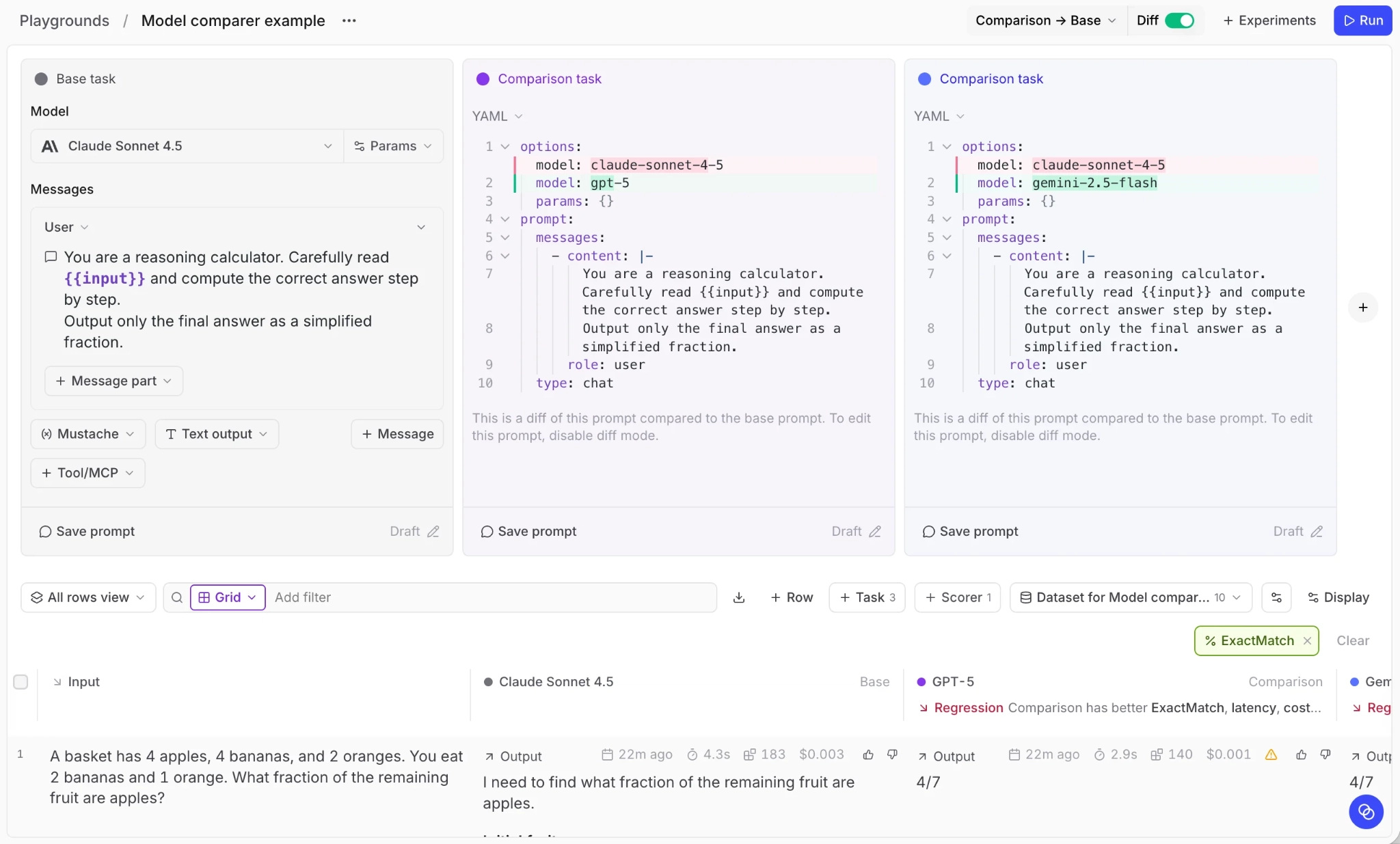
Compare prompt and model variants against the same dataset and scorers in Braintrust Playground.
Know what the playground skips: A prompt task sends requests directly to a model through the provider configured in Braintrust. It does not execute the Lovable Edge Function, so the app's request handling, model integration, response parsing, and error handling remain untested. The provider configuration may also differ from the one used by Lovable. Use the playground results to select a promising configuration, then validate the complete application behavior through the candidate function and remote eval in the following steps.
Step 6: Create a candidate Edge Function
Create a separate Edge Function containing the exact prompt or model change selected in Step 5. The candidate needs to preserve the production function's existing behavior and configuration except for the changes you intend to release, so the remote eval can test the complete update.
Paste the following prompt into Lovable chat, replacing the bracketed placeholders with your function name and proposed changes.
Create a new Edge Function named [function name]-candidate.
Start from an exact copy of [function name], including its Braintrust logging, then make only these changes:
1. [Describe the prompt or model change you plan to ship.]
2. Change the root span name to "[function name]-candidate".
Do not modify [function name] or any frontend code. Nothing in the app should call the new function.
Include the complete change: The candidate must contain the prompt text, model name, parameters, and any parsing updates intended for production. For example, testing a new prompt with the existing model will not establish how the feature behaves if the release also changes the model.
Before running the evaluation, check whether the candidate writes to a database or triggers external actions. A separate function URL does not automatically isolate its database or connected services, so use an appropriate test environment or safeguards for functions with side effects.
Copy both URLs: Open More → Cloud → Edge functions in Lovable, select each function, and use Copy URL. Step 7 will use the production URL as the baseline endpoint and the candidate URL as the endpoint under evaluation.
Step 7: Run application-level tests with a Braintrust remote eval
A Braintrust remote eval executes the Lovable app's actual Edge Function, including its request handling, model calls, and response parsing. Braintrust sends the test cases to a local eval server, which calls the selected Edge Function and returns the results for scoring. Using the same evaluation task for production and candidate endpoints makes their results directly comparable.
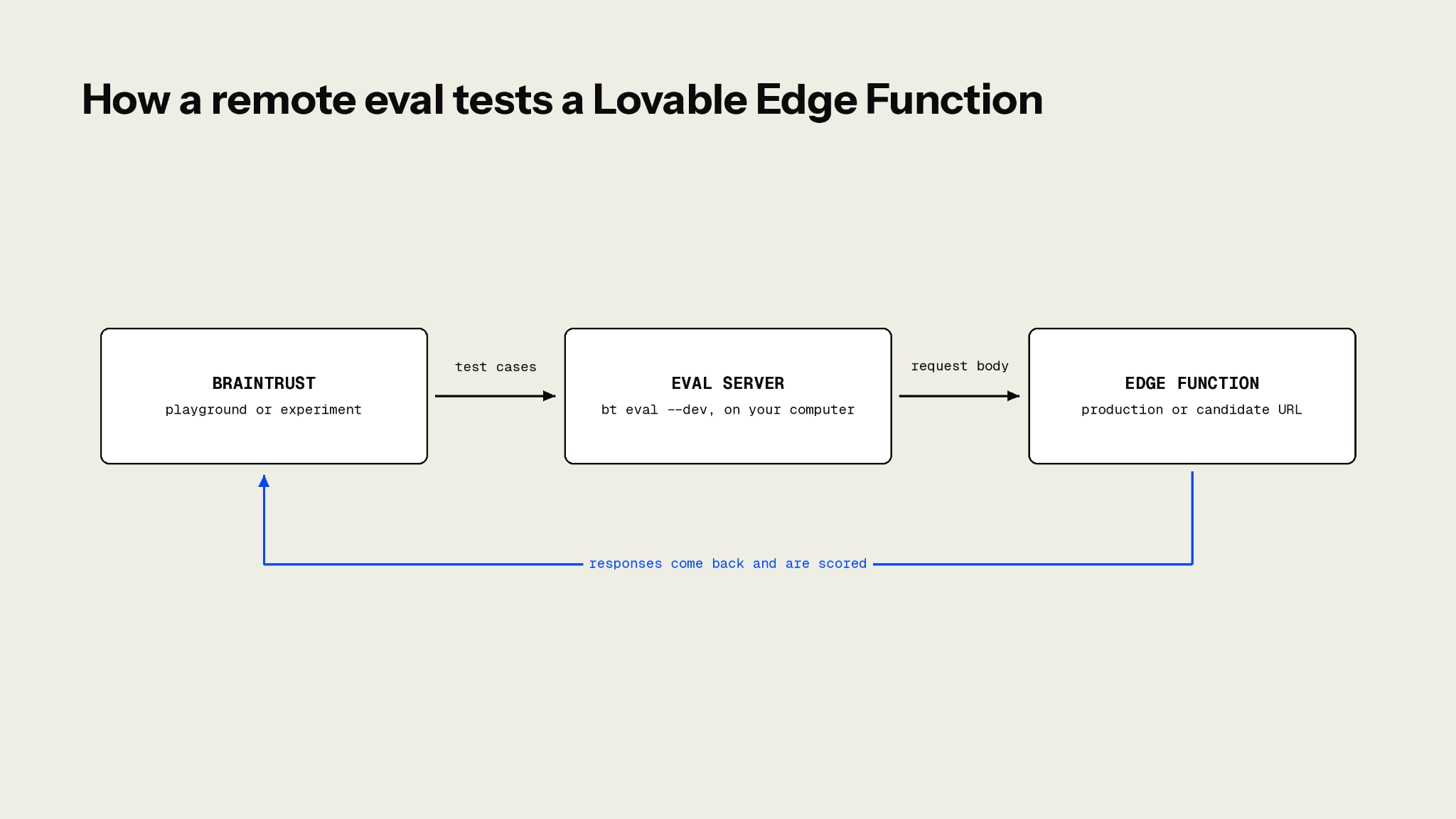
Braintrust sends test cases to a local eval server, which calls the selected Edge Function and returns responses for scoring.
1. Prepare the remote eval
Use the remote eval example in Braintrust's Lovable cookbook as the starting point, adapting it to your application's authentication and response format. Configure it with your Braintrust project name and a functionUrl parameter that accepts either of the Edge Function URLs copied in Step 6.
The evaluation task should send each dataset row's input as the JSON request body and return the function's response for scoring. Configure authentication to match the Edge Function's access requirements. Functions that require an authenticated user need a valid session token, and the evaluation should report failed requests and invalid responses as errors.
2. Start the evaluation server
Follow the remote eval setup guide to install the required dependencies and start the local evaluation server in development mode. Keep the server running throughout the test.
For access from another machine or shared environments, register the server URL under Settings → Remote evals → Create remote eval source.
3. Connect the remote eval to Braintrust
Open a playground in your Braintrust project, select + Task, choose Remote eval, and select the evaluation you configured.
Attach the dataset from Step 3 and the scorers from Step 4. Braintrust lets you configure the evaluation's parameters directly in the playground, so the Edge Function URL can be changed without modifying the evaluation code.
4. Test production and candidate functions
Add two remote eval tasks to the playground. Set functionUrl to the production URL in the first task and the candidate URL in the second, using the same dataset and scorers for both.
Run the comparison and inspect the results for failed requests, scoring differences, and response-time changes. Start with a small set of cases to verify that both endpoints accept the request format and return the expected response structure before running the complete dataset.
Confirm that evaluation requests cannot modify production data or trigger unintended external actions. Requests that use Lovable AI also consume the application's AI usage allocation.
The playground provides an initial application-level comparison. Step 8 records the results as experiments for the final release review.
Step 8: Compare candidate results against the production baseline
Playground results are overwritten when you rerun a test, so use Braintrust experiments to preserve the results for your release decision. Open Experiments, select + Experiment, choose Remote eval, and select the evaluation configured in Step 7. Create one experiment for the production endpoint and another for the candidate, using the same dataset, scorers, and evaluation settings.
Set production as the baseline
Open the candidate experiment and use the Comparisons selector to set the production experiment as its baseline. Braintrust matches test cases by input and displays score differences, highlighting improvements in green and regressions in red. If rows show dashes in place of scores, check that both experiments used identical inputs and dataset versions.
The Summary table provides an overall comparison grade and aggregate metrics, but the release decision should account for individual failures. Use the case_type metadata from Step 3 to examine known failures and regression guards separately.
Check the results against your release criteria
Review four conditions before approving the candidate:
-
Regressions on guard rows: Filter by
case_typeand inspect requests that passed in production but failed in the candidate. Use diff mode to identify changes in the outputs. Previously correct category classifications should continue passing. -
Errored requests: Count failed requests separately from quality scores. A candidate with improved average scores may still contain HTTP errors, invalid responses, or timeouts that affect application reliability.
-
Known failures: Confirm that the candidate improves the cases the prompt or model change was intended to fix. For the feedback-triage example, summaries that previously introduced unsupported information should now pass the faithfulness scorer.
-
Latency and cost: Check that response times remain within the feature's requirements. Review model usage and estimated costs in the instrumented Edge Function traces where the metrics are available. The HTTP-based evaluation in this tutorial does not automatically capture underlying model costs.
For important requests with inconsistent model outputs, repeated evaluation trials can help establish whether the improvement holds across multiple runs.
Promote the candidate
Once the candidate meets the release criteria, ask Lovable to apply the tested changes to the production Edge Function. Confirm that the deployed prompt, model, parameters, and response handling match the candidate, then rerun the evaluation against the production URL.
Review the new results against the same release criteria and retain the verified production experiment as the baseline for the next release. Publish the app separately if the frontend also changed.
Common mistakes when testing Lovable AI changes
Editing the production function directly: Confirm that Lovable created a separate candidate function and that the frontend still calls the production endpoint. A change applied to the existing function reaches live users as soon as it deploys.
Releasing based on playground results: A prompt-only playground test cannot detect problems in the Edge Function's request handling, model integration, or response parsing. Complete the remote evaluation before approving a candidate.
Sending mismatched request bodies: An extra wrapper, renamed field, or trace reference can cause evaluation requests to fail. Compare a failing dataset row with the request body recorded in the original Braintrust trace. For authentication errors, check the credentials supplied to the remote eval.
Comparing experiments with different inputs: Use the same dataset version, scorers, and evaluation settings for production and candidate experiments. If Braintrust cannot match inputs between experiments, correct the configuration and rerun the tests before interpreting score differences.
Overloading the Edge Function: Excessive parallel requests can trigger provider rate limits or timeouts. Start with a small batch, adjust evaluation concurrency when necessary, and investigate failed requests before interpreting aggregate scores.
Test Lovable AI changes before release with Braintrust
Braintrust gives Lovable builders a repeatable release check. Shared quality criteria and saved experiment results make each decision easy to review, and the verified production experiment becomes the baseline for the next prompt or model update, so the same dataset and scorers carry forward from one release to the next.
After deployment, Braintrust's online scoring can evaluate production traces asynchronously without adding latency to user requests. Reviewing low-scoring interactions, confirming failures, and adding those cases to the evaluation dataset extends test coverage as the Lovable app encounters new requests.
Start free with Braintrust to establish a repeatable release evaluation process for your Lovable app.
FAQs: testing AI features in a Lovable app
Does Lovable's preview keep Edge Function changes away from live users?
Lovable's Publish action controls which frontend version visitors see. When the preview and published app use the same backend resources, publishing the frontend does not isolate those resources. An update to an existing Edge Function can therefore affect live requests as soon as the function is deployed, even when frontend changes remain unpublished.
How does a playground test compare with a remote eval for a Lovable app?
A playground prompt task helps identify which prompt or model configuration produces better responses. A remote eval also exercises the deployed function's application logic, making it useful for detecting authentication failures, response-format errors, and integration problems. Use both when a change affects model behavior and the application that delivers it.
Do I need to write code to run a remote eval against a Lovable Edge Function?
A remote eval requires a small evaluation task, but you can start with the example in Braintrust's Lovable cookbook and adapt it to your function. Once configured, the same task can evaluate subsequent changes by updating its parameters in the Braintrust interface.
Does the same process work with my own Supabase project connected to Lovable?
The evaluation process also works with a connected Supabase project. Retrieve the function URLs and configure the required secrets and authentication through Supabase, then use the same Braintrust dataset, scorers, and experiment comparison.
What happens to a Lovable feature if Braintrust is unreachable?
With non-blocking logging and error handling configured correctly, the feature can continue responding even when Braintrust is unavailable. Trace uploads may fail during the interruption, leaving gaps in the recorded data, so check the Edge Function logs and verify trace delivery once connectivity returns.