

Contributed by Ornella Altunyan on 2024-11-22
From digitizing and archiving images of your handwritten notes, to automating invoice processing, there are a multitude of reasons you’d want to extract text from an image. You could use an LLM for image processing, but doing so can sometimes be inaccurate, expensive, and slow. Optical character recognition, or OCR, is a great pre-processing step that allows you to convert raw image data into text that can then be processed or summarized by an LLM.
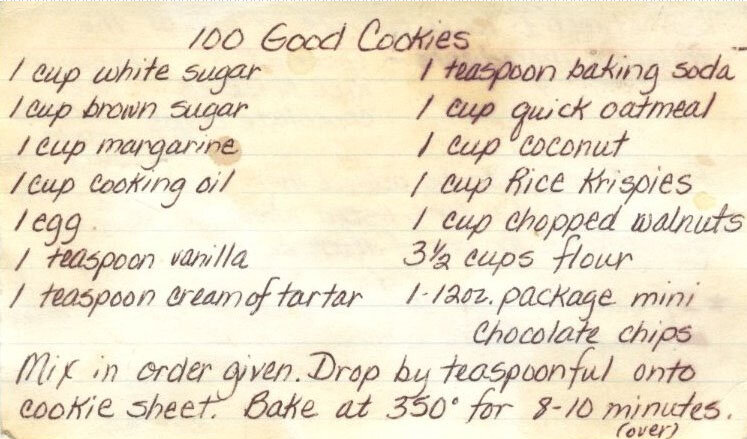
Maybe you find the perfect recipe on the internet, but it’s surrounded by ads and people’s life stories, or you want to digitize an old recipe written by your grandmother.
Getting started
To get started, you’ll need a few accounts: andpython and pip installed locally. If you’d like to follow along in code,
the tool-ocr
project contains a working example with all the code snippets we’ll use.
Clone the repo
To start, clone the repo and install the dependencies:.env file with your Braintrust API key:
Creating an OCR tool
Optical character recognition, or OCR, is any type of technology that converts images of typed, handwritten or printed text into machine-encoded text. There are many well known libraries for OCR — in this cookbook, we’ll use OCR.Space, a free API you can use for testing without creating an account.For this cookbook, we’re using the free version of OCR.Space that limits the
number of requests. You may exceed rate limits and need to upgrade your
account to experiment further with this application.
ocr.py:
#skip-compile
Try out the tool
To try out the tool, visit the toolOCR project in Braintrust, and navigate Tools. Here, you can test different images and see what kinds of outputs you’re getting from the tool.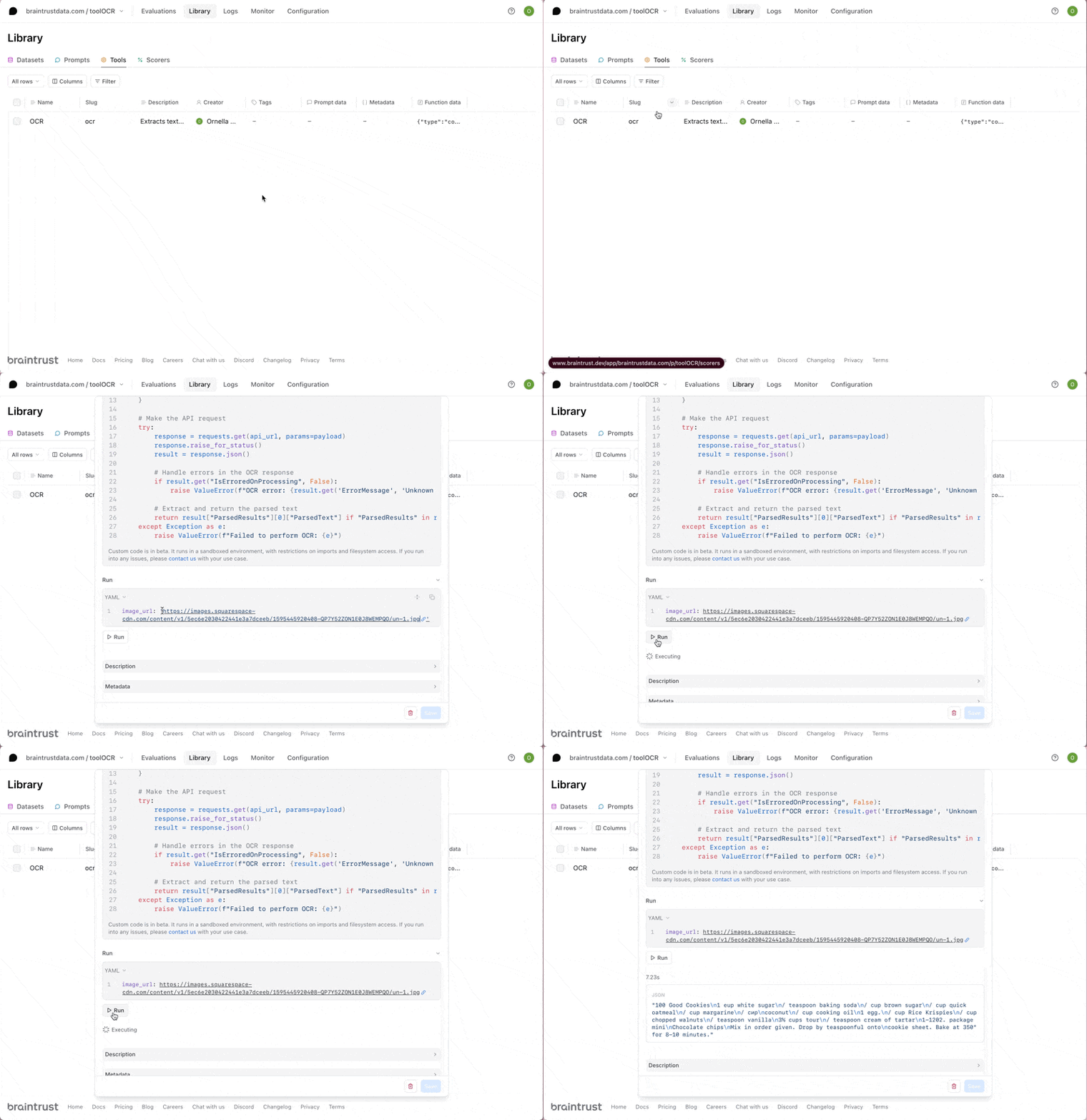
/n to indicate new lines in the parsed text. You could include additional processing in your tool to do this. If you change your code, just run braintrust push ocr.py --requirements requirements.txt again to sync the tool with Braintrust.
Try out the prompt
When we pushed the tool to Braintrust, we also included an initial definition of the prompt:#skip-compile
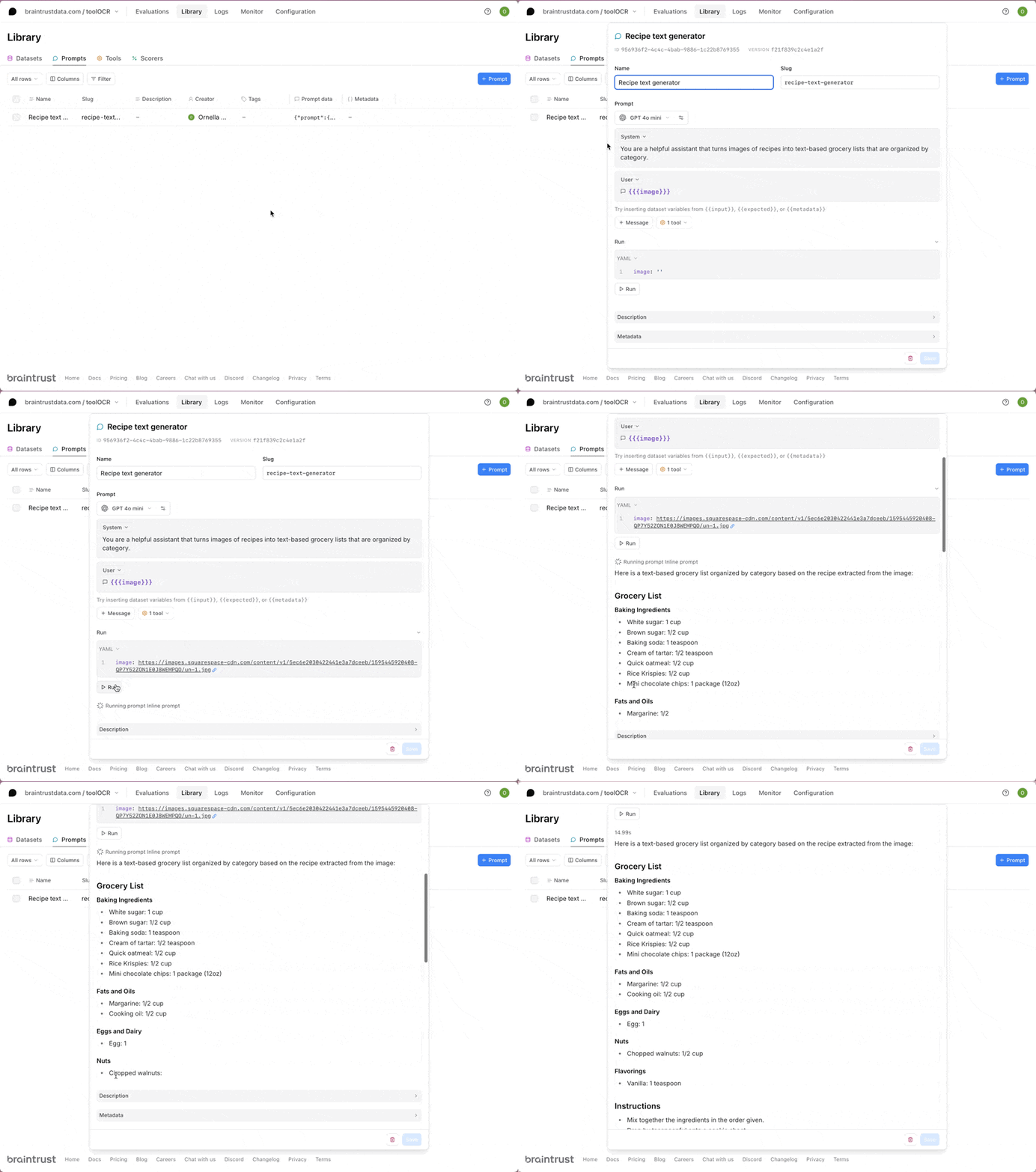
We recommend using code-based prompts to initialize projects, but we’ll show
how convenient it is to tweak your prompts in the UI in a moment.
Create a playground
To try out the prompt together with some data, we’ll create a playground. Scroll to the bottom of your prompt modal and select Create playground with prompt. In thetool-ocr project, we set up a script for you that will upload a sample dataset of recipe images. To upload the dataset to Braintrust, run:
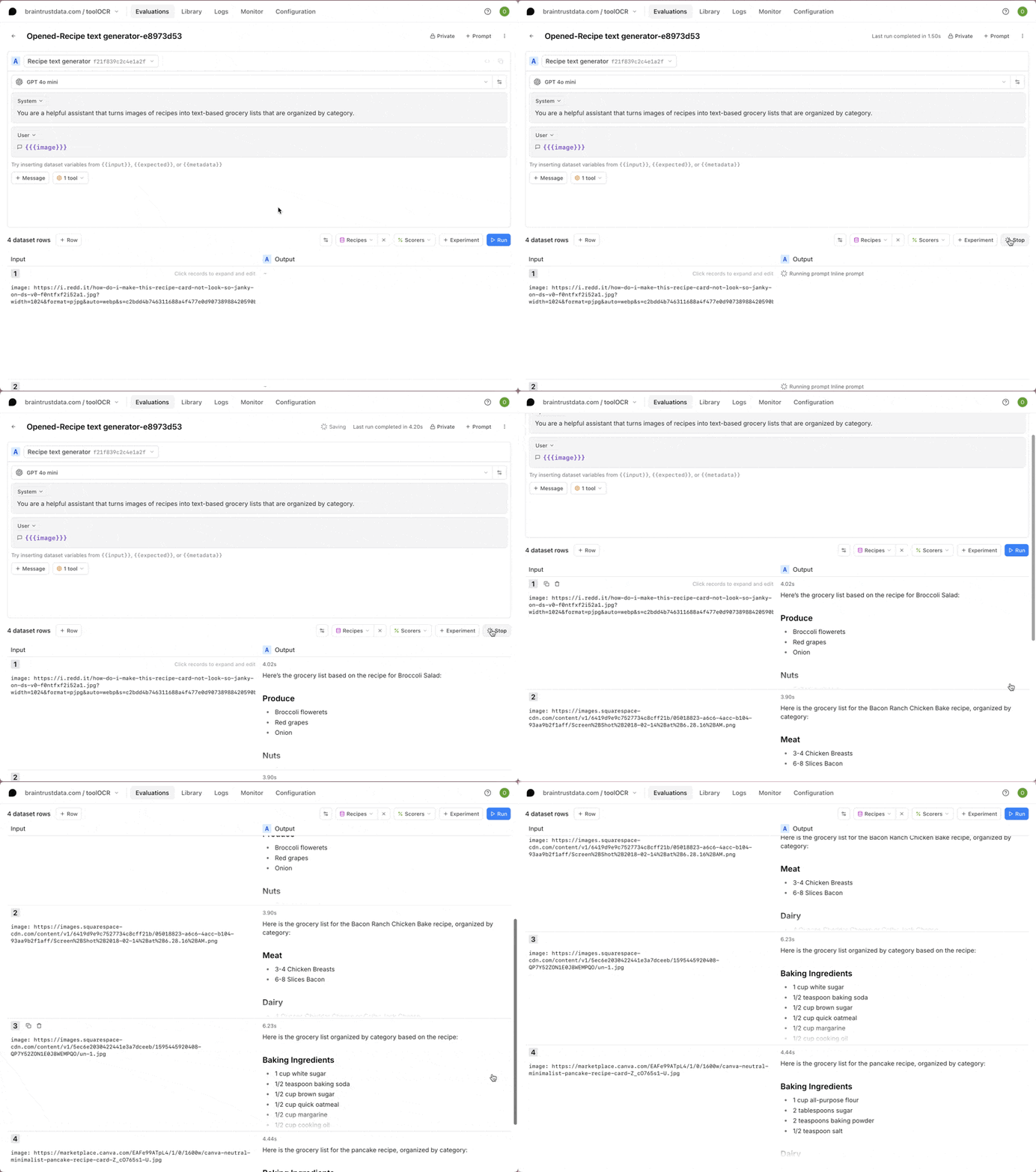
Iterating on the prompt
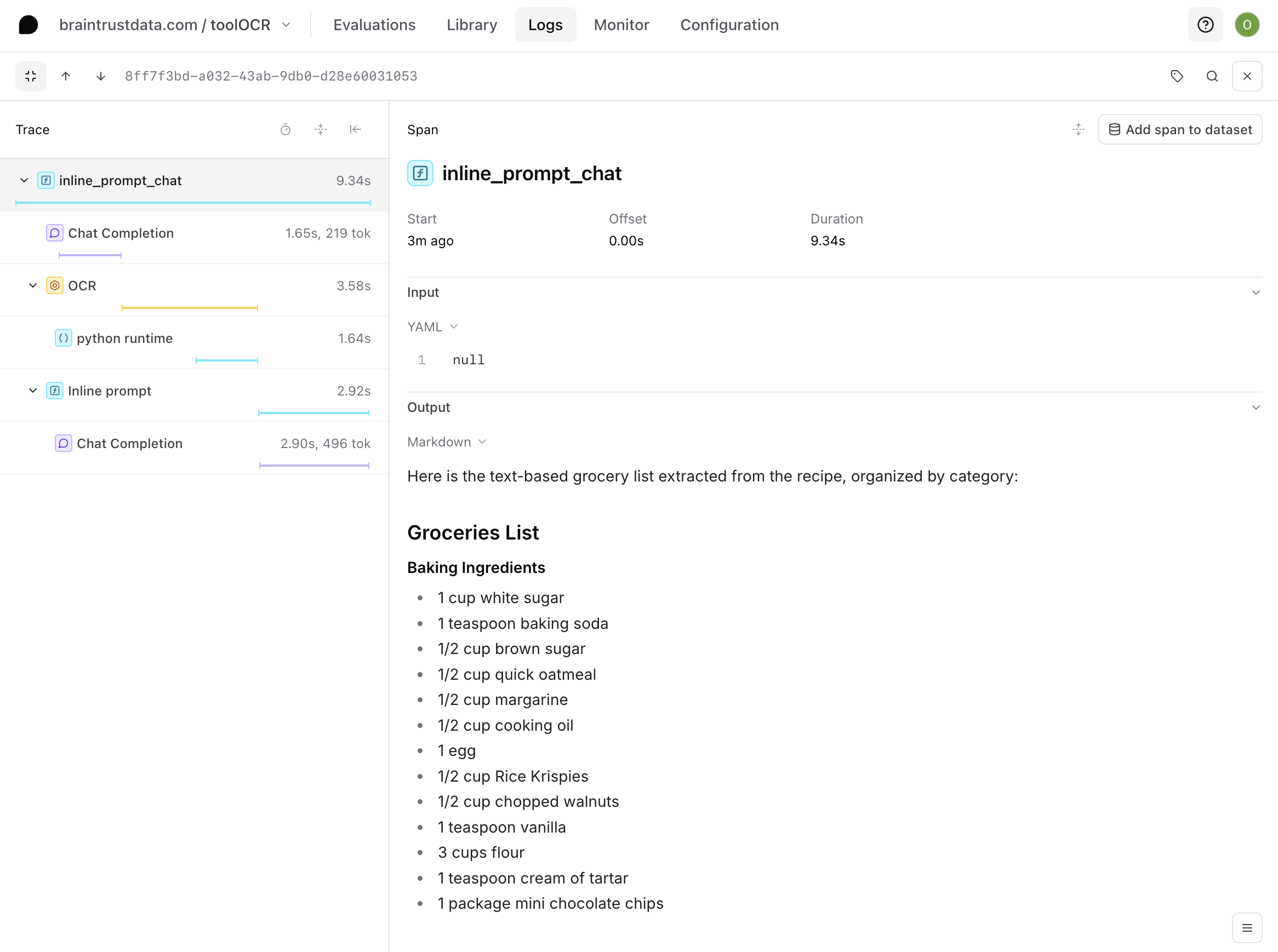
Now that we have an interactive environment to test out our prompt and tool call, we can tweak the prompt and model until we get the desired results. Hit the copy icon to duplicate your prompt and start tweaking. You can also tweak the original prompt and save your changes there if you’d like. For example, you can try instructing the model to always list the quantity of each ingredient you need to purchase.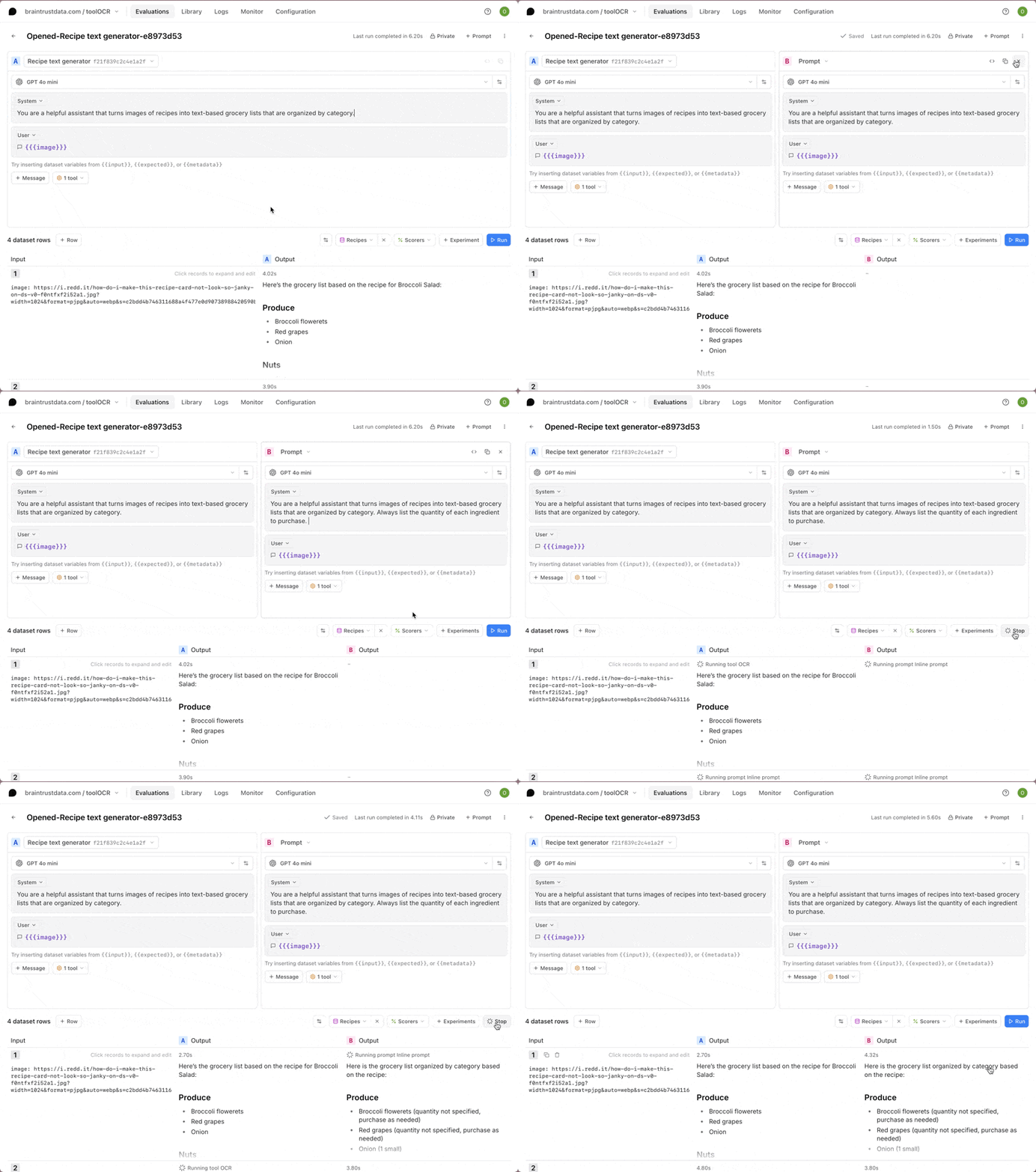
Next steps
Now that you’ve written tool and prompt Python functions in Braintrust, you can:- Deploy the prompt in your app
- Conduct more detailed evaluations
- Learn about logging LLM calls to create a data flywheel