

Contributed by Max Kern on 2026-08-19
Coding agent insights shows what your team’s coding agents cost, who uses them, and where they could work more effectively. A dashboard covers usage and cost, and a daily Loop automation finds recurring problems and inefficiencies across your team’s sessions. This cookbook sets up both for your team.
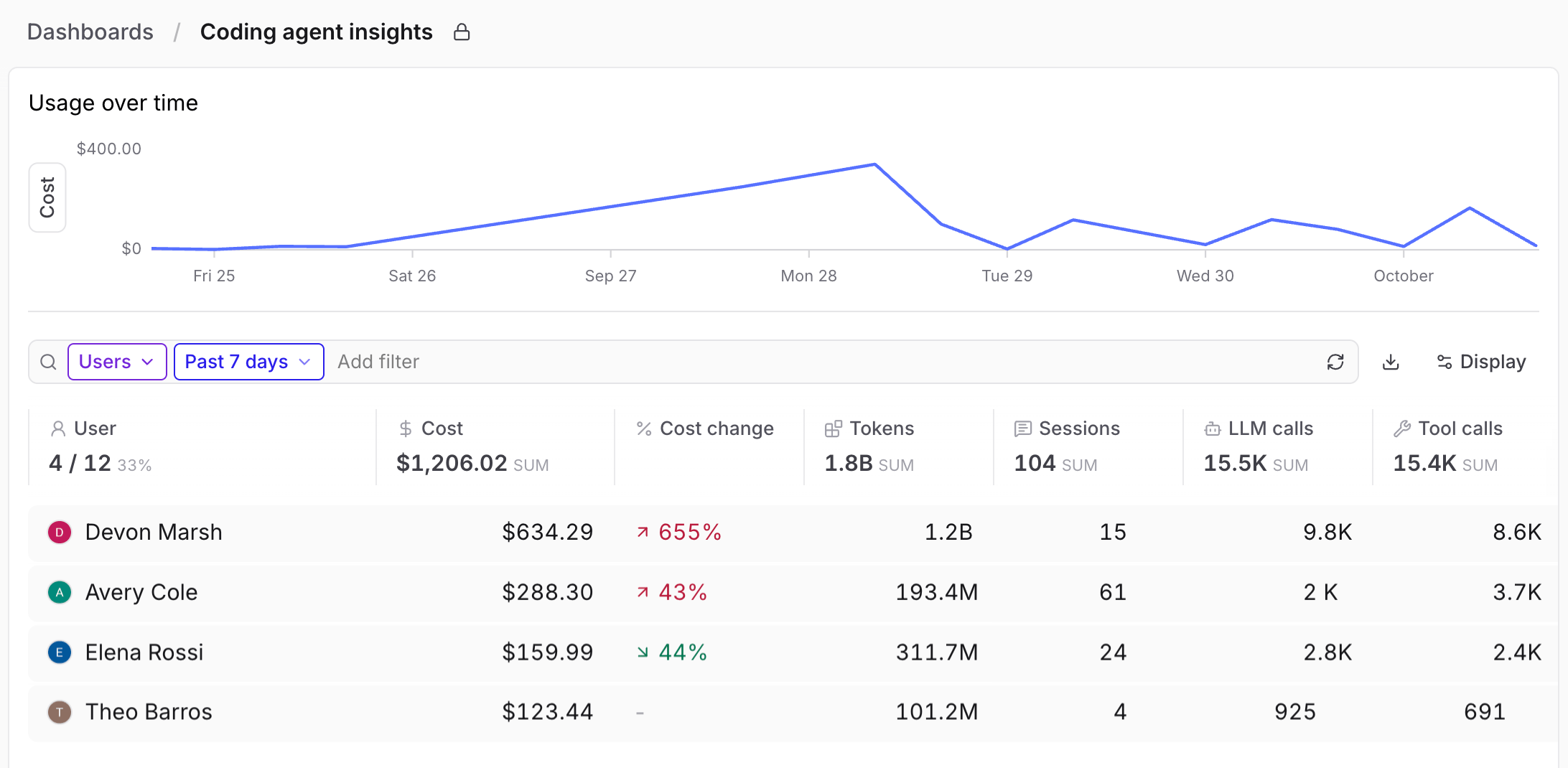
The dashboard at Dashboards > Coding agent insights shows usage by user, API key, model, tool, and branch, with cost breakdowns. It also shows which teammates are sending traces, to help you track adoption across your team.
- Agents repeatedly resending large amounts of context, increasing model usage.
- File operations failing because of stale paths or imprecise replacement text.
- Agents repeatedly checking whether long-running commands have finished.
- Tracing issues that combine unrelated work or reprocess the same sessions.
Prerequisites
Before you begin, you’ll need:- A Braintrust account with access to your team’s organization.
- An organization owner who can enable Topics if needed.
- An OpenAI AI provider configured with access to
gpt-6.1-sol. - A coding agent: Claude Code, Codex, OpenCode, Pi, Antigravity, or Grok.
- Data plane v2.13.0 or later, if you self-host Braintrust.
1. Create a project for your traces
First, create a dedicated project for your coding-agent traces.- In Braintrust, open the project dropdown and click Create project. Creating a project requires organization-level
Createpermission. - Enter a name for your project, such as
coding-agent-insights. This cookbook uses that name in its examples, so if you choose a different one, use it wherevercoding-agent-insightsappears. - Optionally add a description, then click Create.
- Make sure every teammate whose sessions you want to collect has
Readpermission on the project to view it andUpdatepermission on its logs to send traces.
2. Protect sensitive data (optional)
Coding-agent traces can contain source code, file paths, prompts, command output, and any credentials that appear during a session. Ingestion redaction detects sensitive text, such as names, email addresses, and credentials, and replaces it before Braintrust stores your traces. Detection is model-based and can miss sensitive values. Ingestion redaction applies only to traces that arrive after you create a protected field, so create one for your project before teammates start sending traces. For instructions, see Create a protected field.3. Configure your coding agents
Next, configure your coding agents to send traces to the project. You and your teammates must complete this setup on each computer where you use a coding agent.1
Install or update bt
If you already have After installing, open a new terminal so that
bt installed, update to the latest version. Otherwise, install it:bt is on your PATH. Then run bt --version. You should see bt v0.19.3 or later.2
Authenticate with Braintrust
If
bt is already signed in with OAuth and can access coding-agent-insights, skip this step. Otherwise, run the following command and complete the browser flow:bt saves an OAuth profile that the tracing integrations use to authenticate.Each teammate should sign in with their own Braintrust login. The dashboard at Dashboards > Coding agent insights attributes each session to the Braintrust user whose credentials sent it. If teammates share one API key, the dashboard can’t tell their sessions apart.
Self-hosted deployments
Self-hosted deployments
If your deployment uses custom authentication URLs, sign in using this command:
--api-urlspecifies the API URL for OAuth authentication, which defaults tohttps://api.braintrust.dev.--app-urlspecifies the Braintrust app URL used to find your organizations and their data planes, which defaults tohttps://www.braintrust.dev.
bt saves these settings and automatically resolves where to send traces for the selected organization.3
Enable tracing for each agent
Run the commands for the coding agents you use on this computer. Each command enables tracing for one agent and sends its sessions to After setup:
coding-agent-insights.If you have several saved profiles, bt uses the one that can access the organization you pass with --org, and asks you to choose if more than one can.- Claude Code
- Codex
- OpenCode
- Pi
- Antigravity
- Grok
- Restart Claude Code to load the tracing configuration.
- Run
bt trace doctor claude. - Confirm that
Enabledistrue,Authisready, and the displayed organization and destination project are correct. - If the organization or project is incorrect, rerun
bt trace enable claudewith the correct--organd--projectvalues.
4
Verify tracing
Confirm that each configured agent sends sessions to the shared project:
- Start a new session in each configured coding agent and ask it to complete a small task. Ask participating teammates to do the same.
- Go to Logs, select
coding-agent-insights, and confirm that each new session appears as a root trace.
- For any agent, run the agent’s
bt trace doctorcommand and resolve any authentication or routing problems it reports. - For Codex, run
/hooksand confirm that the Braintrust hooks are trusted. - For Grok, run
/reload-pluginsbefore sending the test prompt.
4. Configure Topics and Loop
With tracing configured, enable Topics, then use a prebuilt configuration file to add the coding agent insights facets and daily Loop automation to your project.1
Enable Topics
If Topics is already enabled for
coding-agent-insights, skip this step. Otherwise, ask an organization owner to:- In
coding-agent-insights, go to Topics. - Under Get started with topics, make sure Task is selected. You can leave the other built-in facets off.
- Choose whether to Apply to existing traces.
- Click Enable topics.
2
Download the configuration file
- Coding agent context debt: Identifies reusable knowledge or access the agent lacked that you had to supply during the task, such as a repository convention it missed.
- Primary failure mode: Labels the main problem in a session, such as an unresolved test failure, editing the wrong files, or getting stuck in repeated attempts.
- Skills analysis: Labels problems caused by a skill the agent loaded, such as choosing an irrelevant skill or ignoring its instructions.
3
Apply the configuration file to your project
Applying the configuration file requires project-level At the confirmation prompt, verify the organization, project, three facets, one Loop automation, and Topics wiring. Then confirm the push. The command should report that it pushed 3 facets and 1 Loop automation.
Read, Create, and Update permissions. To add its Topics facets and Loop automation to your project, run this command:--prefer-profile uses your saved login even when BRAINTRUST_API_KEY is set. An explicit --profile also takes precedence.4
Review the installed resources
Review the Topics facets
Review the Topics facets
Confirm that the template added the facets to the project and attached them to the Topics automation:
- In
coding-agent-insights, go to Topics. Confirm that cards appear for Coding agent context debt, Primary failure mode, and Skills analysis. - Click Automation and select Topics. Expand Active facets and confirm that it includes the same three custom facets.
Review the Loop automation
Review the Loop automation
Confirm that the template created an active daily automation with the expected analysis window and pattern permissions:
- Go to Settings > Automations. Confirm that Coding Agent Improvements Discovery shows Every 24 hours and Active.
- Click Coding Agent Improvements Discovery to open it. On the Edit tab, confirm that:
- Agent configuration shows GPT-6.1 Sol with Extra high reasoning effort.
- Default query range shows Custom,
30days. - Write tool permissions shows 2 allowed. Open it and confirm that
new_patternandupdate_patternare selected.
5. Collect coding-agent traces
Now, collect traces as you and your teammates use your coding agents. Each session gives the automation more evidence to distinguish recurring problems from one-off difficulties.6. Verify the automation
Once you’ve collected some traces, run the Loop automation manually to check that it’s working:- Go to Settings > Automations and open Coding Agent Improvements Discovery.
- Click Run now, then Open Loop in the confirmation notification to view the run’s thread. You can also open the latest run from the automation’s Past runs tab.
- Confirm that the run completes without reported errors and describes the traces it reviewed.
7. Review your team’s usage
The Coding agent insights dashboard shows usage and cost as soon as traces arrive, without waiting for the daily automation.-
In
coding-agent-insights, go to Dashboards > Coding agent insights. - Check which teammates are sending traces. With the table grouped by Users, the User column header counts members with recorded model calls matching the selected period and filters. Click the count to see who is and isn’t sending traces.
-
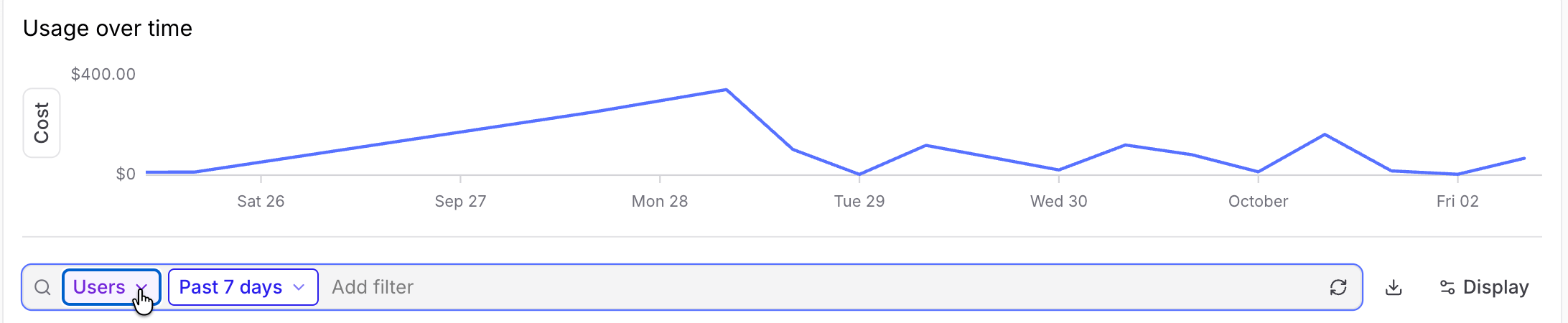
Use the grouping selector to break down usage and cost by user, API key, model, tool, or branch:
8. Review patterns
As findings appear, review them in Patterns to decide what to change in your agents’ instructions, skills, or tools. To review a pattern:- Go to Patterns in
coding-agent-insights. - Select a pattern and read its summary and suggested fix, if one is provided.
- Open the evidence traces to check that they support the finding. Review any attached monitor charts to see how the behavior changes over time.
- Choose an action: click Continue in Loop to investigate further, create a scorer or classifier to track the behavior, or click Copy for agent to copy the pattern as a prompt for a coding agent to work on a fix. See Review and act on patterns for instructions.
9. Refine the analysis and share reports (optional)
Finally, you can change what the automation looks for by editing its Instruction prompt, and send its reports to Slack or a webhook.Experiment with changes in Loop
Experiment with changes in Loop
To change what the automation analyzes, start in an interactive Loop thread. You can try different analyses against recent sessions before updating the automation.Ask Loop to suggest changes. Go to Loop and enter this prompt:Continue the thread to refine and test its suggestions.Try your own analysis. If you already know what you want to try, describe the revised analysis in a new Loop thread and ask Loop to run it against recent sessions. Adjust your instructions and rerun the analysis until you’re satisfied with the results.Apply a change. When you’re ready to apply a change, ask Loop to make it and click Accept, or edit the automation yourself. To edit it, go to Settings > Automations, open Coding Agent Improvements Discovery, make the change, and click Save.
Send reports to Slack or a webhook
Send reports to Slack or a webhook
To send the result of each successful automation run to Slack or a webhook, add a destination to Coding Agent Improvements Discovery.Test the destination. Save the automation and click Run now. When the run finishes, confirm that the Slack channel or webhook endpoint received the formatted report.Adding a destination does not change the automation’s daily schedule or 30-day lookback window.
- Slack
- Webhook
1
Connect Slack
Skip this step if Slack is already connected to your organization. Only members of the Owners permission group, or a custom permission group with the Manage settings organization permission, can connect Slack.Go to Settings > Integrations, click Enable Slack, and authorize Braintrust to access your Slack workspace. For details, see Enable Slack integration.
2
Add the destination
Go to Settings > Automations and click Coding Agent Improvements Discovery to open it. Under Destinations, click Destination and select Send to Slack. Then choose the workspace and channel.Braintrust prepopulates a suggested Formatting prompt. Review it and adjust it as needed for your team.
Troubleshooting
The template download fails
The template download fails
If the
curl command for downloading the configuration file returns an HTTP error:- Confirm that the URL is
https://www.braintrust.dev/docs/assets/active-observability-config.json. - Retry from a network that can reach
www.braintrust.dev.
A facet or automation already exists
A facet or automation already exists
If
bt observability template push reports that a matching facet or Loop automation already exists, it stops before the confirmation prompt:- If you intend to restore the template configuration, rerun the same command with
--forceand confirm the replacements. - A new project does not need
--force.
Codex cannot clone the plugin marketplace
Codex cannot clone the plugin marketplace
If
bt trace enable codex reports a marketplace clone timeout:- Run the command again.
- If it repeatedly reports
fatal: early EOF, troubleshoot the network connection rather than the Braintrust project configuration.
Traces do not appear
Traces do not appear
If a test session does not appear in Logs after you configure tracing:
- Restart the coding agent and run another test task.
- For a self-hosted deployment, confirm that the saved OAuth profile uses the correct authentication URLs. If
BRAINTRUST_API_URLis set in the shell where you start the agent, check that it points to the intended data plane or unset it to letbtresolve the selected organization’s endpoint. Restart the agent after changing its environment. - If the trace still does not appear, run
bt trace doctor <AGENT>, replacing<AGENT>withclaude,codex,opencode,pi,antigravity, orgrok. - Confirm that
Enabledistrue,Authisready, and the displayed organization and destination project are correct. - If
Authis notready, runbt login --oauth, then run the doctor command again. - If the organization or destination project is wrong, rerun
bt trace enablefor that agent with the correct--organd--projectvalues.
A saved session cannot be imported
A saved session cannot be imported
If
bt trace import cannot find a Codex, Claude Code, or Antigravity session:- Confirm that the command names the agent that created the session. Use
bt trace import codexfor Codex,bt trace import claudefor Claude Code, orbt trace import antigravityfor Antigravity. - Run the command from the same user account and computer where that agent saved the session.
The automation cannot call its model
The automation cannot call its model
If Coding Agent Improvements Discovery fails because it cannot call
gpt-6.1-sol:- Configure
gpt-6.1-solfor the OpenAI provider under AI providers, or select an available model in the automation editor. - Run the automation again.
Cleanup
No action is required to keep collecting traces. Choose any cleanup actions you need:Delete the downloaded configuration file
Delete the downloaded configuration file
After pushing the template, run
rm /tmp/active-observability-config.json.Send future traces to another project
Send future traces to another project
Rerun the appropriate
bt trace enable command for each configured coding agent with the new --org and --project values.Stop collecting coding-agent traces
Stop collecting coding-agent traces
Run
bt trace disable <AGENT> for each configured agent, replacing <AGENT> with claude, codex, opencode, pi, antigravity, or grok. This removes the Braintrust tracing integration and its saved configuration.Delete the tracing project
Delete the tracing project
First stop tracing or send future traces to another project. Then follow the instructions below if you no longer need the project’s data.
- Go to Settings > General.
- Click Delete project.
- Enter
coding-agent-insightsand click Delete.
Recap
You’ve set up coding agent insights for your team. The dashboard at Dashboards > Coding agent insights shows who is sending traces and where usage and cost go. Topics classifies each session, and Loop reviews the evidence each day and creates or updates patterns automatically. Use those findings as a starting point for improving your agent instructions, skills, tools, and configuration. As your team’s needs change, you can refine the analysis and share reports in Slack or through a webhook.Next steps
- To learn what each grouping shows, read Coding agent insights dashboard.
- Learn how to review and act on patterns.
- Configure Loop automations to change their schedule, permissions, and destinations.
- Create and test Topics facets for other problems your team wants to track.
- Explore the
btCLI commands for querying and managing project data.